
Ogou QR — User guide
Create digital cards, bio-link pages, menus, bookings, dynamic QR codes and payment pages, and run the platform: step-by-step for owners and members.
One link. One scan. Full access. This guide walks through every feature of Ogou QR Pro (v2.4.9), step by step, for site owners and members.
Keep this address bookmarked:
yoursite.com/wp-login.php?ogou_bypass=1. It always opens the real WordPress login, even with App Mode on.
Quick start (site owner)
- Install the plugin zip, activate it, then go to Settings → Permalinks → Save (once).
- Open Ogou QR → Website and build your front:
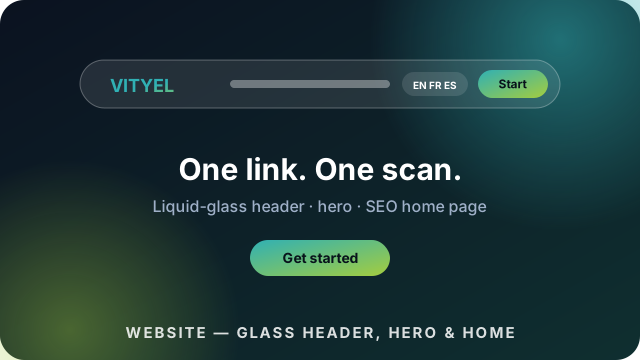
- Site header: enable the liquid-glass header, pick a Text or Image logo, add menu links (Home, Pricing, About), set the call-to-action (“Get started” → your register page) and the language switcher (EN · FR · ES).
- Hero and Home: pick a hero template; enable the autonomous home page and write the meta description (Open Graph and JSON-LD are automatic).
- Create a page at /go/ containing
[ogou_qr_hub]. That is the member app. - In Ogou QR → Plans, confirm the plan IDs and limits. On your Pricing page, point each “Choose” button to a SureCart instant-checkout link:
/checkout/?line_items[0][price_id]=PRICE_UUID&line_items[0][quantity]=1
- Purge all caches and test in an Incognito window. Always.
Create a Digital Business Card (member)
- Sign in, open the Dashboard (/go/) → Digital Cards → Create Card.
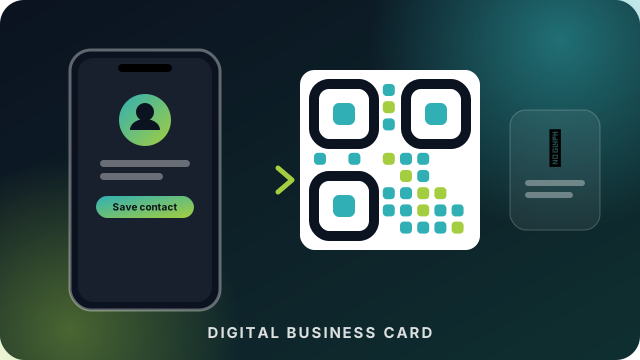
- Fill in your identity: name, job title, company, photo, logo, phone, e-mail, socials and links. Pick a theme (classic, dark or gradient) and your colour.
- Save. Your public page lives at
yoursite.com/p/your-slug, with:- a Save contact button (a vCard straight to the visitor’s phone),
- a Contact Exchange form (their details land in your Leads, with the marketing opt-in recorded),
- your coloured QR code to download and print.
- A visitor who is not signed in can also start a card from the public builder (“Get started”): they fill it in, press Save Card (Sign in to finish), or sign in with Google right there, and their draft is waiting after login.
Tips. The QR works printed on business cards, table tents and vehicle wraps. Re-download it any time. Scans are counted in Analytics.
One Pager: your bio link
- Dashboard → One Pager.
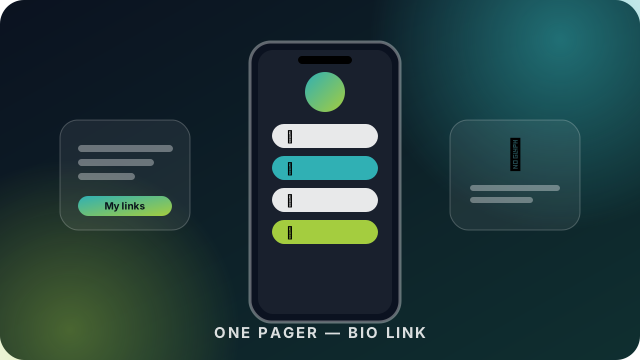
- Set the display name and claim your slug (
yoursite.com/yourname). Availability is checked live. - + Add link and pick the platform (49 available, grouped: Social, Music & Streaming, Professional & Creative, Payments & Support, Contact). Handle-based platforms fill in the URL prefix for you (for example TikTok
@you); streaming IDs take the full link. - Optional for each link: a label, a thumbnail image, a schedule (start and end dates). Drag to reorder.
- Upload an avatar and cover, add a contact e-mail and phone, then Save. The popup shows your QR and a copy-ready link for your Instagram or TikTok bio.
Visitors’ messages are saved as Leads and e-mailed to you: nothing gets lost.
Digital Menu with WhatsApp orders (Pro)
- Dashboard → QR Studio → Menu tile.
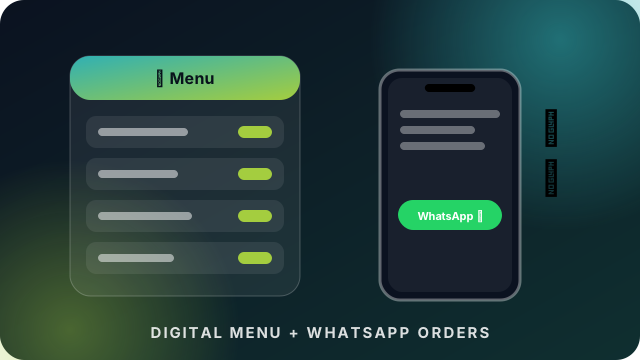
- Enter the restaurant name, tagline, logo and brand colour. Add sections (Starters, Mains, Drinks…) and items: name (+ translation), description (+ translation), price, and allergen chips (14, with emoji).
- Turn on WhatsApp ordering, then enter your WhatsApp number and currency.
- Save, and the QR popup opens. Print the QR on your tables.
Customers scan, browse the accordion menu, tap + on items, see the cart bar add up, then tap Order on WhatsApp, which opens a chat with you containing the full itemised order. You confirm in WhatsApp: no app, no commission.
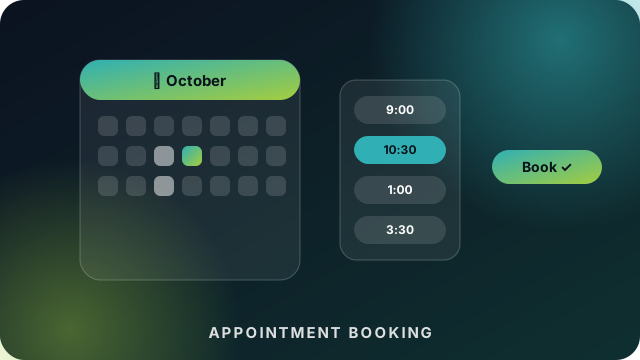
Appointment Booking (Pro)
- QR Studio → Booking tile.
- Enter the business name, tagline, logo and colour. List your services (name, duration, price, description) and set the open days and time slots.
- Save Booking Page & Get QR. Share
/book/your-slugor print the QR.
Clients pick a service, a day and a time, then leave their details. You get a branded e-mail with a WhatsApp reply button, the request appears in Leads, and the client’s thank-you screen offers “Message on WhatsApp”. The page follows the visitor’s language (EN, FR, ES).
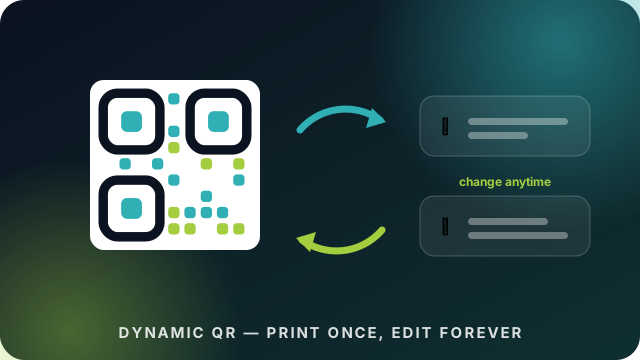
Dynamic QR: print once, edit forever (Pro)
- QR Studio → Dynamic QR tile.
- Give it a label (for you), paste the destination link, optionally choose a custom code, then Create.
- Print the QR of
yoursite.com/go/yourcode.
Change the destination any time from the same screen: the printed QR never changes. Every scan is counted (14 days of activity are shown for each code). Perfect for flyers, packaging, table tents and campaigns.
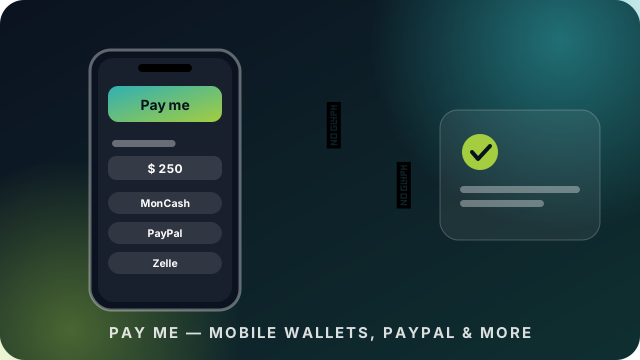
Pay Me: get paid on one page (Pro)
- QR Studio → Pay Me tile.
- Enter your name or business, logo, colour, currency, and the amount mode (free entry, or preset buttons like
100, 250, 500). - Fill in only the methods you use: mobile wallets (type to search: MonCash, NatCash, MyCash, M-Pesa, Orange Money… or enter your own), PayPal.me, Cash App, Zelle, Venmo, bank details.
- Save and share
/pay/your-slugor its QR.
The customer picks a method, sees exactly where to send the money (with copy buttons), pays directly to your account, then taps “I’ve paid — notify on WhatsApp” so you can confirm. Payment intents appear in your stats; the platform never holds the money.
QR Studio: every other code
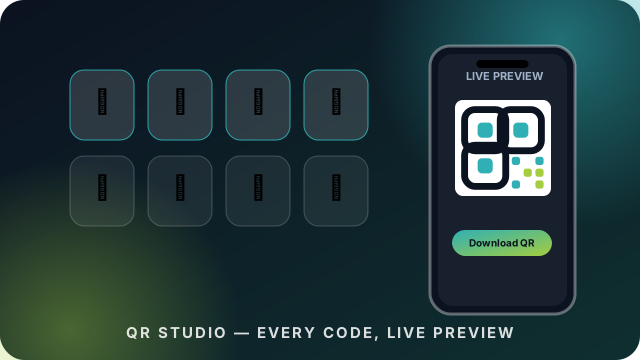
Standard tiles: Website/URL, Text, Email, Phone, SMS, WhatsApp, WiFi, Location, Event. Fill in the fields and watch the live phone preview (browser, call screen, WiFi dialog, chat, map, calendar), pick the size and colour, then Download QR. The download is made on the server, so it saves the file instead of opening an image.
Leads and CSV export
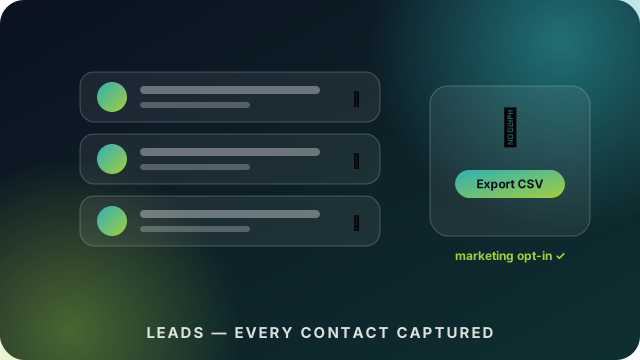
Dashboard → Leads lists every contact exchange, One Pager message, order, booking request and payment notice, with its source and the marketing opt-in (Yes/No), so you stay compliant. Plans with the CSV capability export everything in one click; the owner can export the whole platform from the console (Data Export).
Analytics
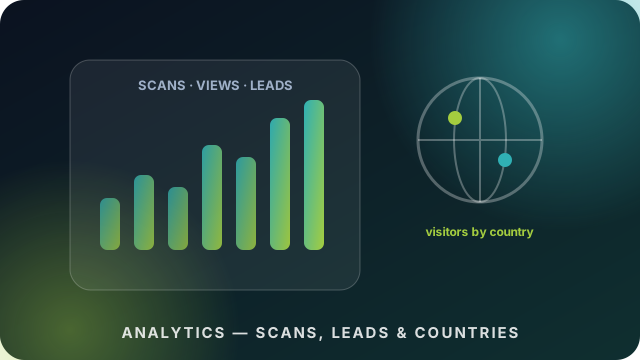
- Members: scans, views, leads and sparkline trends for each item in the dashboard.
- Owner (Ogou QR console): platform totals, daily charts, top cards/pages/menus and visitors by country (enable Location analytics in Monetization; it works with the free provider out of the box).
Languages: EN, FR, ES
Visitors tap EN / FR / ES in the header. The dashboard, QR Studio, public pages (booking, pay, menu), auth pages and e-mails follow instantly. The choice is remembered (cookie and account). Add or override strings with the ogou_qr_translations filter.
Install it like an app (PWA)
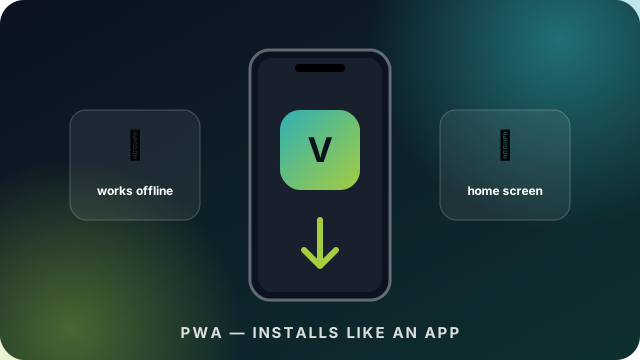
On a phone, public pages offer Add to Home Screen (Chrome prompt; in Safari: Share → Add to Home Screen). The icon launches full-screen and the pages keep working on a weak or missing connection, which is ideal for a menu or a card shown at the door.
Invite and earn (Referral)
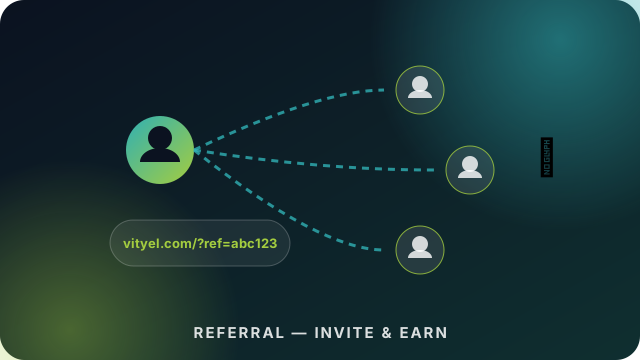
Dashboard sidebar → Invite & earn: copy your permanent link (yoursite.com/?ref=yourcode). Anyone who signs up within 30 days of clicking it is credited to you, and your counter shows “friends joined with your link”. The owner sees every referrer in Console → Referrals and rewards the best promoters (upgrades, credits…).
White-label for agencies (Agency plan)
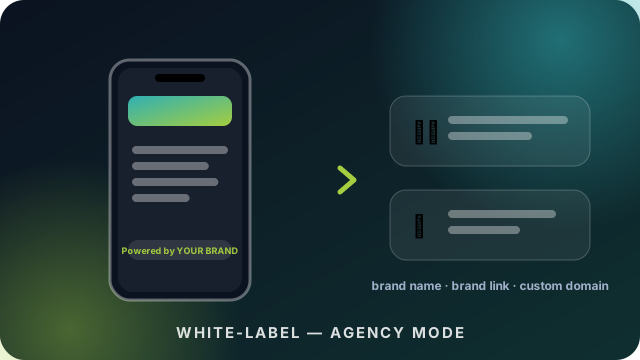
Dashboard sidebar → White-label (agency): enter your brand name and website, then Save. From then on, every public page you own (menus, booking, pay) shows “Powered by Your Brand” instead of OgouLabs. With 50 cards and pages on the Agency plan, you can run all your clients under your own flag. Want client links on your own domain? Point a CNAME at the platform and ask the owner to attach it (custom domain).
App Mode: nothing looks like WordPress
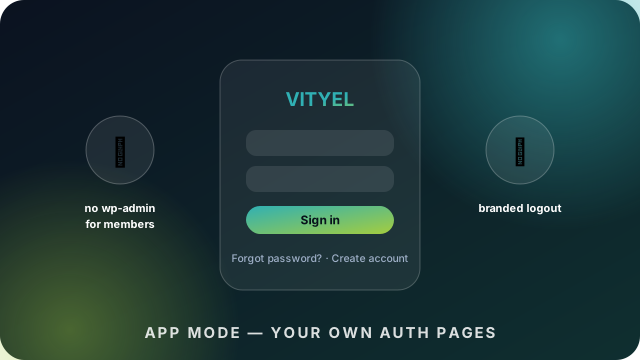
Owner: Website → App mode → Run like an app. Then:
- Members sign in at the glass login page (
/login/redirects there automatically); Forgot password and Reset are glass pages too. - Members never see the admin bar or wp-admin: they always land on /go/.
- Logging out is instant (or shows a branded confirmation), never the WordPress screen.
- Admins keep wp-admin as usual, and
wp-login.php?ogou_bypass=1always works.
Sign in with Google
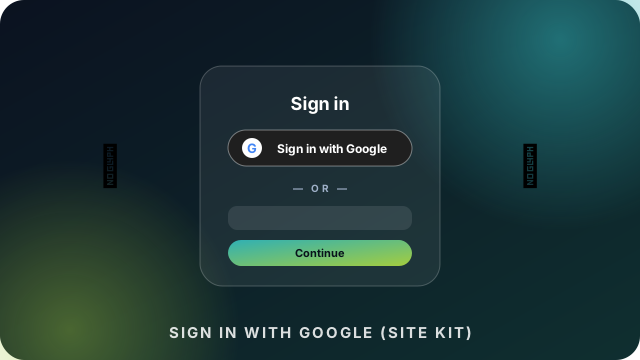
Prerequisite (owner): Google Site Kit with the Sign in with Google module connected. The plugin detects the Client ID automatically (“Detected from Google Site Kit” in Website settings).
Members then see the official Sign in with Google button on the login page and under “Save Card” in the public builder: one tap, a Google popup, signed in, on the dashboard. Classic e-mail and password stay available below the “or” divider.
Branded e-mails
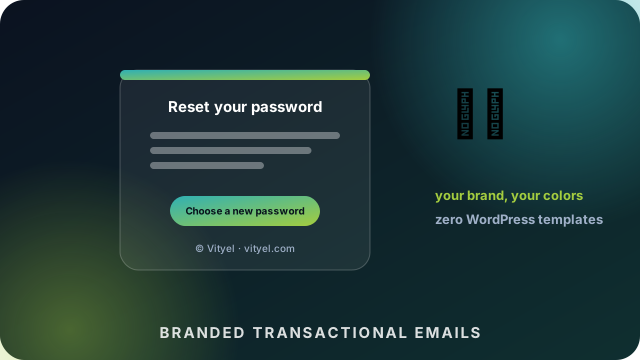
Everything the platform sends (welcome, password reset, password or e-mail changed, new lead, new order, booking request) uses your template: site name, brand-gradient bar, pill button and the colours from Website settings. Reset links open your glass reset page, never wp-login.
Deliverability tip: make sure the sending address exists and that SPF and DKIM are set on your hosting, or route mail through an SMTP plugin.
Plans and upgrading
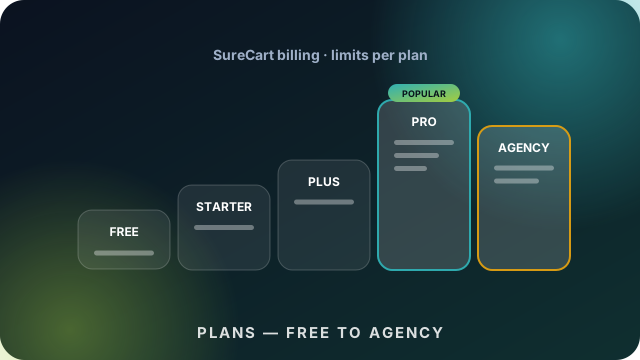
| Free | Starter | Plus | Pro | Agency | |
|---|---|---|---|---|---|
| Digital Cards | 2 | 2 | 3 | 6 | 50 |
| One Pagers | 1 | 1 | 2 | 6 | 50 |
| Scans / month | 100 | 100 | 2,000 | Unlimited | Unlimited |
| Ads on pages | Yes | No | No | No | No |
| CSV export | No | Yes | Yes | Yes | Yes |
| Menu, Booking, Dynamic QR, Pay Me | No | No | No | Yes | Yes |
| White-label | No | No | No | No | Yes |
Upgrading is one click on the Pricing page (SureCart checkout, auto-renewing, cancel any time). Dropping to Free never deletes your content: the extras just unpublish until you upgrade again.
Troubleshooting
| Symptom | What to do |
|---|---|
| I changed something and see nothing | Purge the cache and hard-refresh in Incognito. Always the first suspect. |
| /book/, /pay/, /menu/ or /go/ give a 404 | Settings → Permalinks → Save. |
| The Google button is missing | Is the Site Kit module connected? Check Website settings for the detected Client ID. |
| A QR download opens as an image | Use the app’s Download button, not the preview image. |
| I am locked out | Open wp-login.php?ogou_bypass=1. |
| E-mails go to spam | Create the mailbox and set SPF and DKIM for the sending domain. |
