
Ogou Poll — User manual
Install, set up and run a paid public vote: contests, contestants, coin packs, payment gateways and the live leaderboard.
Ogou Poll is a WordPress plugin for online voting contests (reality shows, pageants, talent contests) where the public buys votes and backs the contestants. It is built for the Haitian market: it accepts MonCash, NatCash and Kashpaw (through Pay’M PlopPlop), plus Stripe and PayPal. This manual shows, step by step, how to create a contest, add candidates, set up payments and run everything yourself, with no technical help.
This manual covers Ogou Poll 3.54.0. Sections 19 to 23 describe what is new (Site Mode, layouts and skins, blocks, big events, editions). The drawings in the other sections are simplified and show no real data; a menu may look slightly different from the drawing.
1. The three parts of the system
- Ogou Poll (the core): contests, candidates, coins, votes, ranking and dashboard.
- Payment gateways: each payment method (Pay’M, MonCash, Stripe, PayPal) is a small separate plugin you install.
- OgouTV: a separate plugin that shows videos and episodes (slider and grid).
2. Words you need to know
| Word | Meaning |
|---|---|
| Contest | The competition: a title, start and end dates, and a list of candidates. |
| Candidate | A person competing (with a photo or a video). |
| Coins | The currency of votes. People buy coins and each coin gives a number of votes that you decide (for example 1 coin = 5 votes). |
| Package | An offer of coins at a price (for example 100 coins = 9.99 USD). |
| Wallet | Where a person’s coins stay until they use them to vote. |
| Gateway | A payment method (MonCash, Stripe…). |
| Shortcode | A small code like [ogou_poll id=”2″] that you paste on a page to show the contest. |
3. Getting started in 6 steps
- Install and activate the Ogou Poll plugin (the core) under Plugins → Add New → Upload.
- Install at least one payment gateway (for example Pay’M PlopPlop) the same way. It appears in the menu by itself.
- Settings: choose the coin label, how many votes a coin gives and the colours (section 8).
- Coins: create your coin packages and their prices (section 7).
- Gateways: activate the gateway you configured and enter your merchant details (sections 9 and 10).
- Contests: create a contest, add candidates and paste its shortcode on a page (sections 5 and 6).
After that, any visitor can open the page, buy coins and vote.
4. The Dashboard
Click the Ogou Poll menu to open the dashboard, a quick summary of all activity.
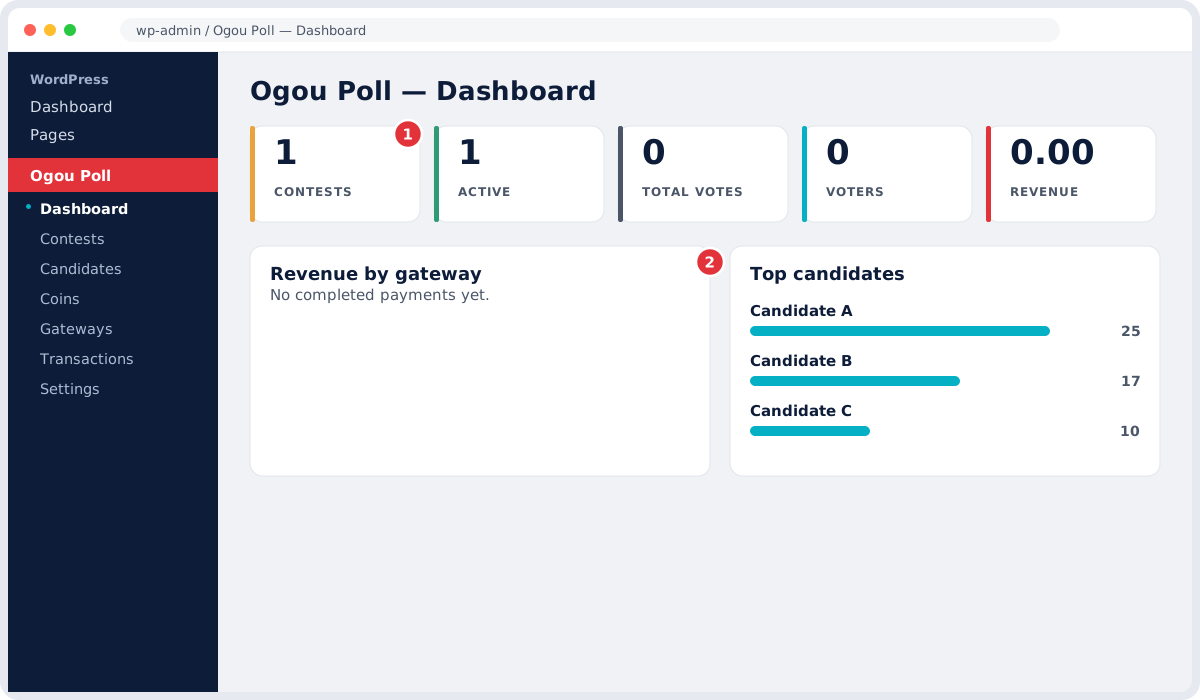
The five cards at the top (1):
- Contests: total number of contests.
- Active: how many are running now.
- Total Votes: votes received.
- Voters: how many people voted.
- Revenue: total of completed payments, one currency at a time (currencies are never mixed).
Below (2) you see Revenue by gateway and Top candidates.
5. Creating a contest
Go to Ogou Poll → Contests, fill in the form at the top and click Create contest.
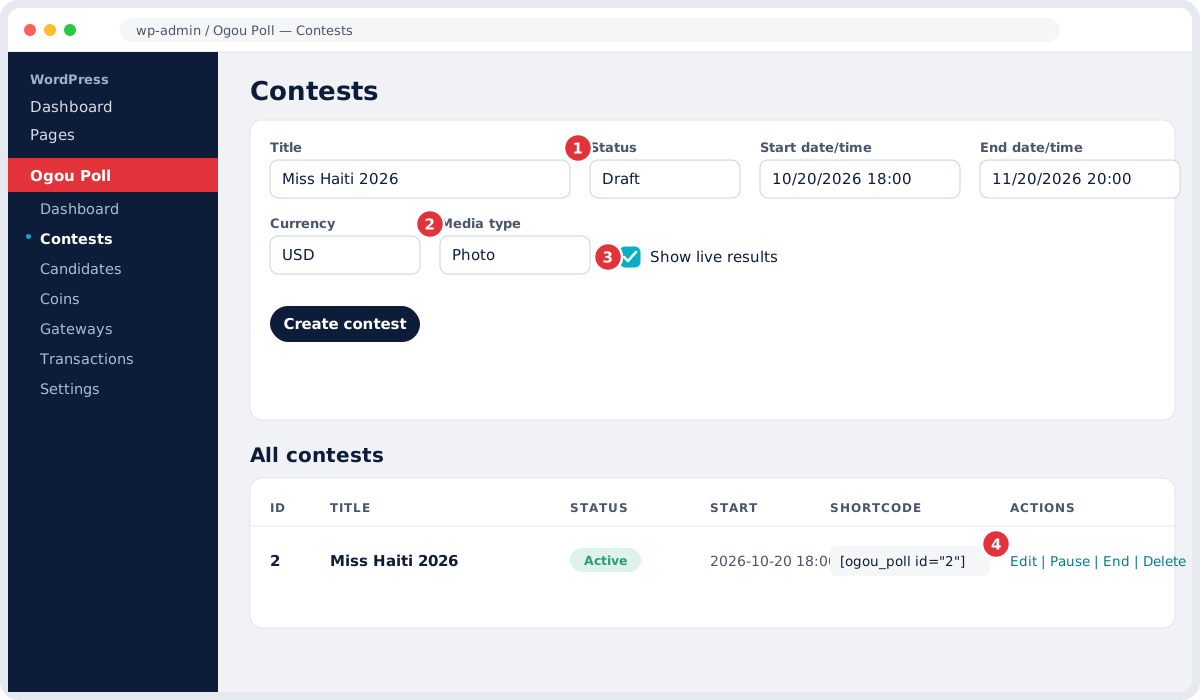
| Field | What to enter |
|---|---|
| Title | The name of the contest. |
| Status | Draft, Active, Paused or Ended. |
| Start / End date-time | When the contest begins and ends. A countdown appears on the page. |
| Currency | The currency (for example USD or HTG). |
| Media type | Photo or Video. For video you can use Vimeo or the Media Library. |
| Show live results | Ticked: the public sees votes live. Unticked: results stay hidden until the end (“Miss International” mode). |
In the All contests list (4) you find the shortcode, such as [ogou_poll id="2"]: copy it and paste it on a WordPress page. Every contest has its own ID, so contests never mix. Actions: Edit, Pause, End, Delete.
Tip: give each contest its own page and use the ID in the shortcode.
6. Adding candidates
Go to Ogou Poll → Candidates. For each candidate you can set a name and a short biography, a photo (drag and drop) or a video link (Vimeo or Media Library), and a number or position.
- Activate or deactivate a candidate without deleting them.
- Reorder candidates by drag and drop.
- Reset a candidate’s votes (with a double confirmation for safety).
- Import a list of candidates in bulk from a CSV file (name, bio, photo or video link).
7. Coin packages
Go to Ogou Poll → Coins to create the packages people can buy.
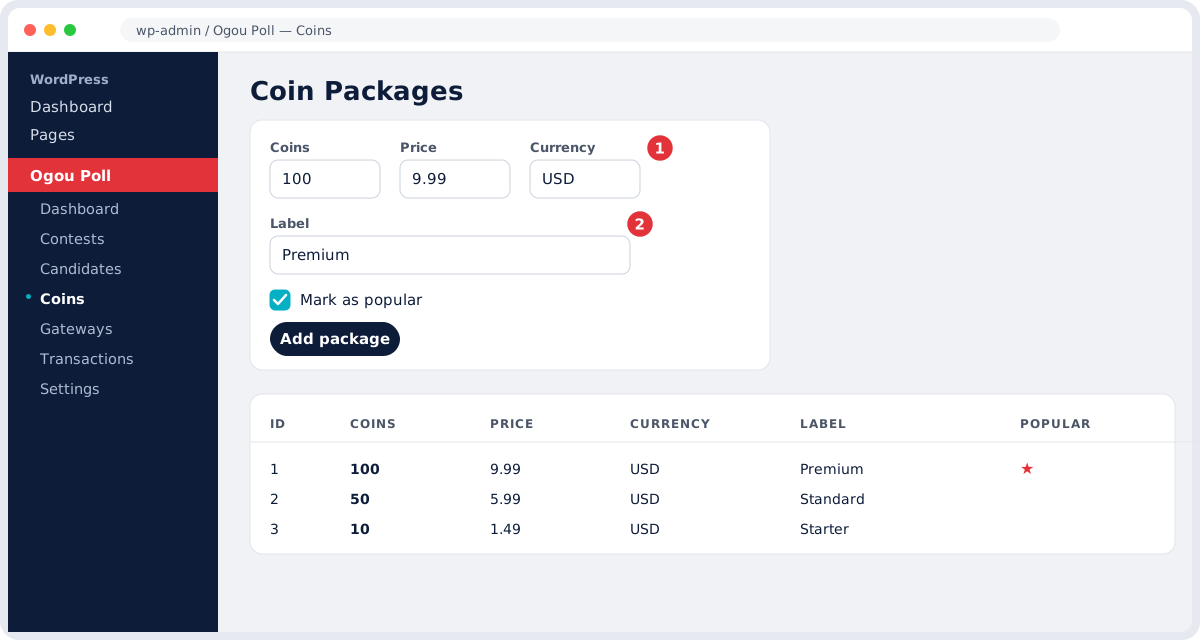
- Coins: how many coins the package gives (for example 100).
- Price and Currency: for example 9.99 USD or HTG.
- Label: a name such as “Premium”.
- Mark as popular: shows a “Popular” badge.
Click Add package. You can create as many packages as you like (for example 10 / 50 / 100 / 500 coins).
8. General settings
Go to Ogou Poll → Settings to decide how votes and the look work.
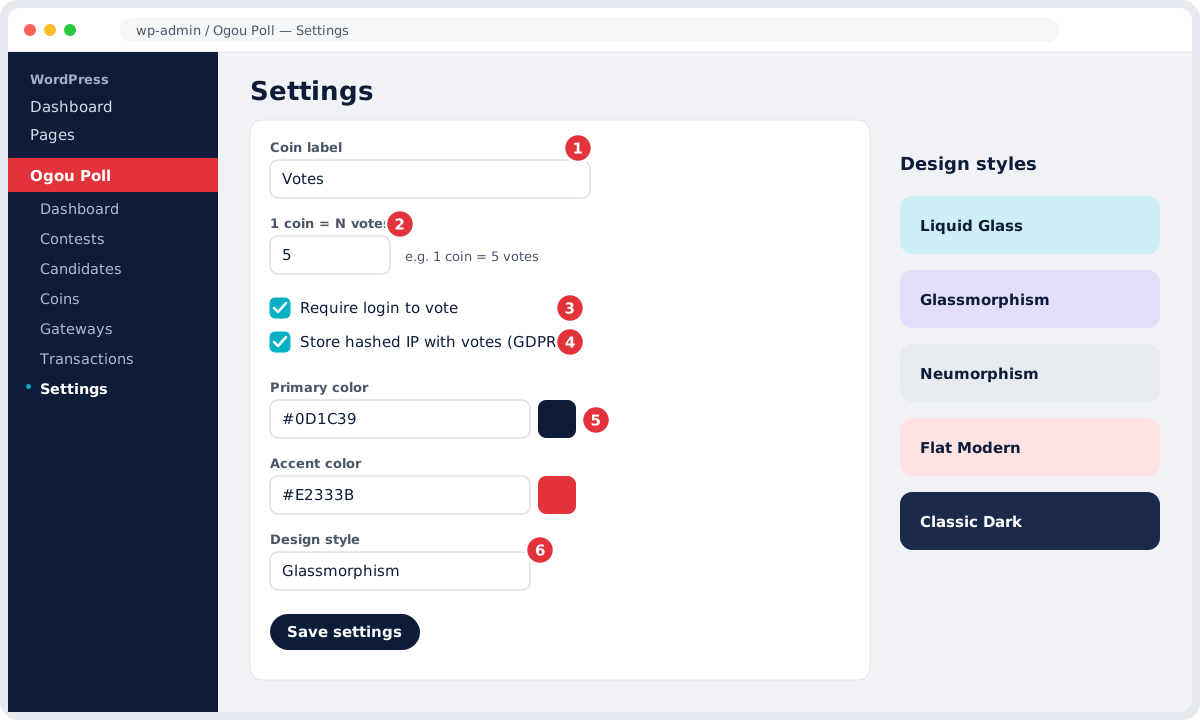
| Setting | What it does |
|---|---|
| Coin label (1) | The name you give the coin (for example “Votes”, “Stars”, “Power Vote”). |
| 1 coin equals N votes (2) | How many votes one coin gives (for example 1 coin = 5 votes). |
| Require login to vote (3) | Ticked: people must sign in before voting. |
| Store hashed IP with votes (4) | For vote integrity (GDPR: if unticked, no IP is stored). |
| Primary / Accent colour (5) | The main colour and the accent colour of the page. |
| Design style (6) | Liquid Glass, Glassmorphism, Neumorphism, Flat Modern or Classic Dark. |
Click Save settings.
9. Payment gateways
Go to Ogou Poll → Gateways. Gateways are separate small plugins; as soon as you install one, it appears here by itself.
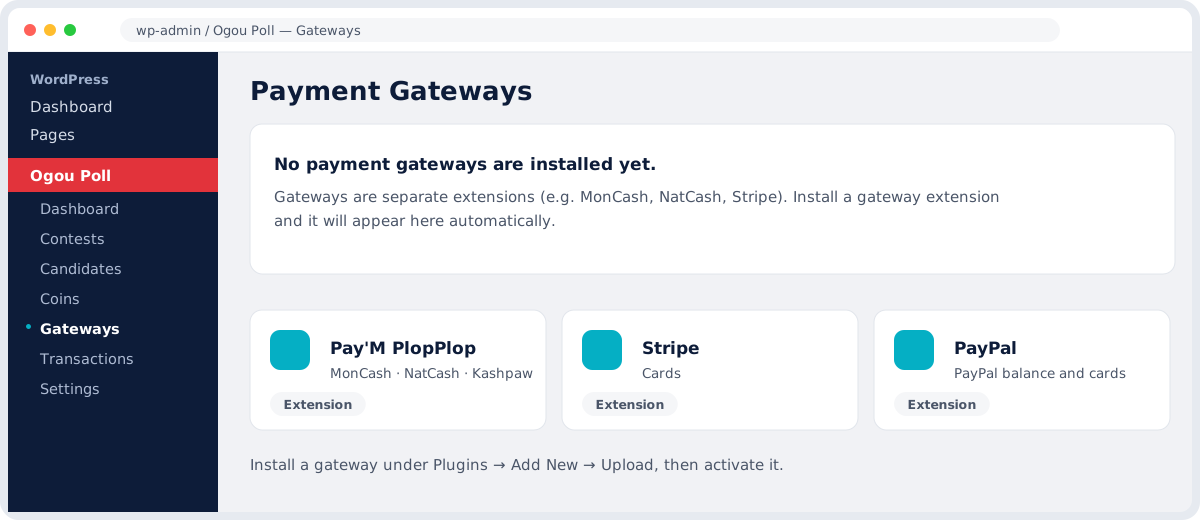
- Under Plugins → Add New → Upload, install the gateway plugin (for example Ogou Poll — Pay’M PlopPlop, MonCash, Stripe or PayPal).
- Activate it. It appears on the Gateways screen.
- Enter your merchant details (see section 10 for Pay’M).
- Enable the gateway so voters can use it.
Each gateway has its own settings page in the Ogou Poll menu.
10. Setting up Pay’M PlopPlop (MonCash / NatCash / Kashpaw)
Pay’M PlopPlop lets you accept MonCash, NatCash and Kashpaw with one gateway.
Step A, on the Pay’M portal (plopplop.solutionip.app): open API Configuration and copy your Client ID. Set the Return URL exactly as https://YOURSITE.com/?ogou_paym_return=1.
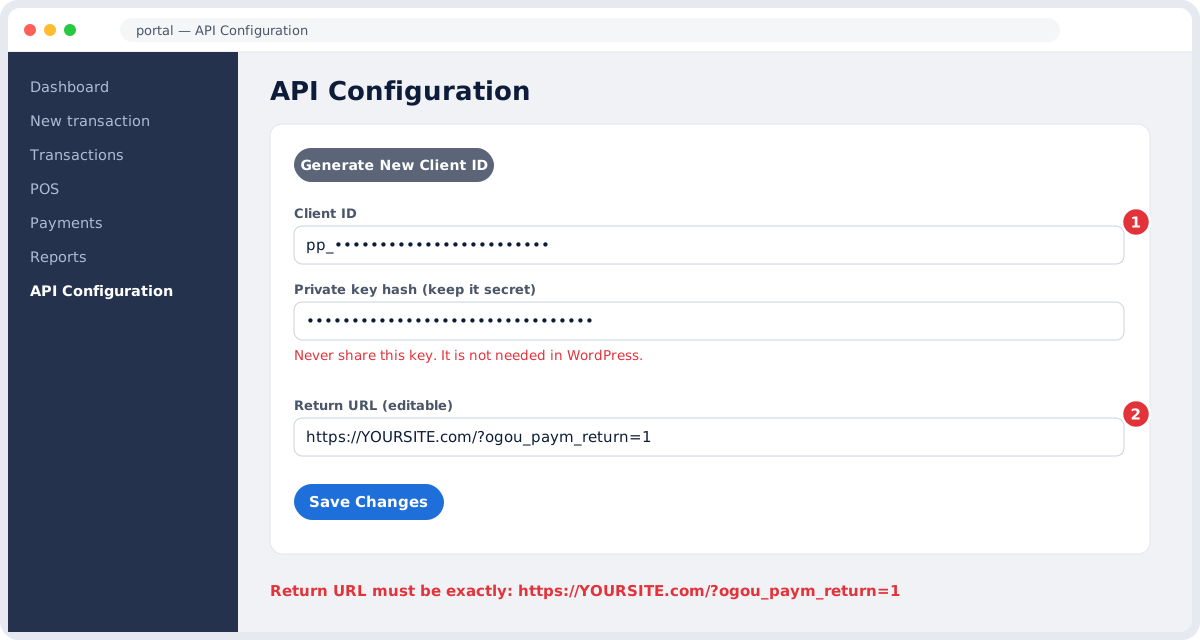
Step B, in WordPress: go to Ogou Poll → Pay’M PlopPlop.
- Client ID: paste the one from the portal (it starts with
pp_). - Payment method: All (the voter chooses), or MonCash / NatCash / Kashpaw only.
- Verify SSL certificate: leave it ticked. If payments stay “Pending” because your server cannot verify the certificate, untick it and save.
Then go to Gateways and enable Pay’M. The minimum amount for Pay’M is 20 HTG.
Important: the Return URL must be exactly the one above, otherwise payments will not be confirmed. Never share your private key; it is not needed in WordPress.
11. Shortcodes
Paste these shortcodes on any WordPress page:
| Shortcode | What it shows |
|---|---|
[ogou_poll id="2"] |
The full voting grid of a contest, updated live. |
[ogou_leaderboard id="2"] |
The ranking only. |
[ogou_results id="2"] |
The final results after the contest closes. |
[ogou_profile] |
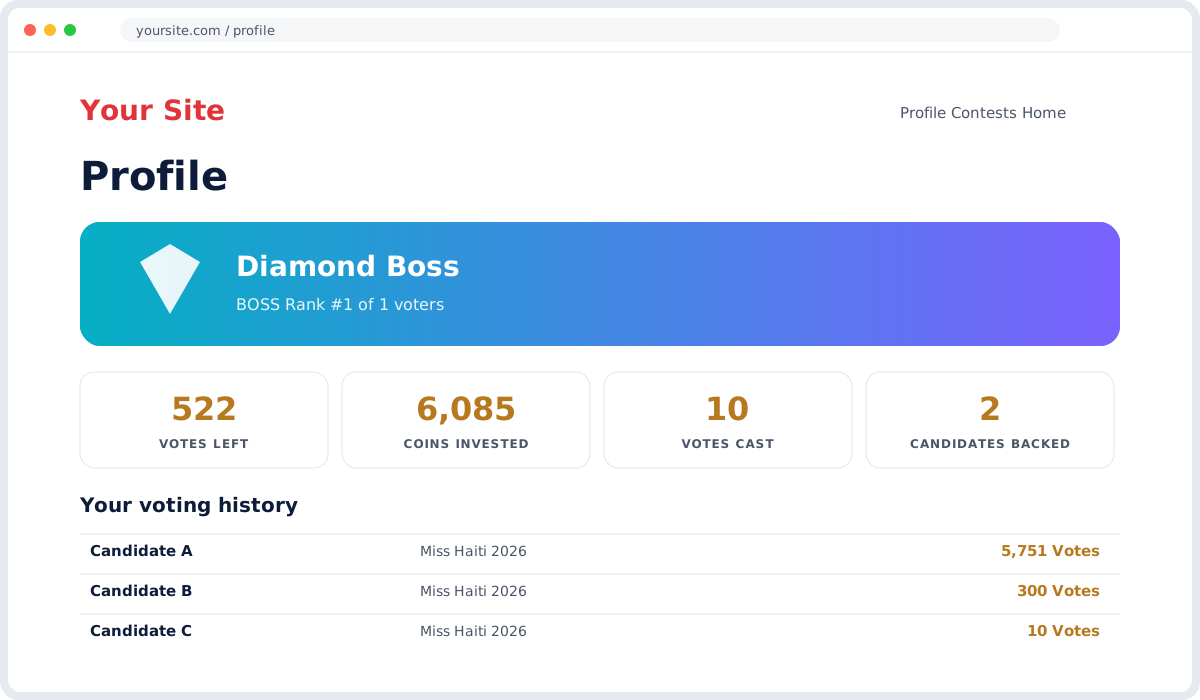
The voter’s profile (“BOSS” rank, coins, vote history). |
[ogou_tv] |
A full-screen ranking to show on a big screen (TV mode). |
[ogou_countdown id="2"] |
A countdown only. |
[ogoutv_slider] |
(OgouTV) A video / episode slider. |
[ogoutv_grid] |
(OgouTV) A video grid. |
12. What the voter sees
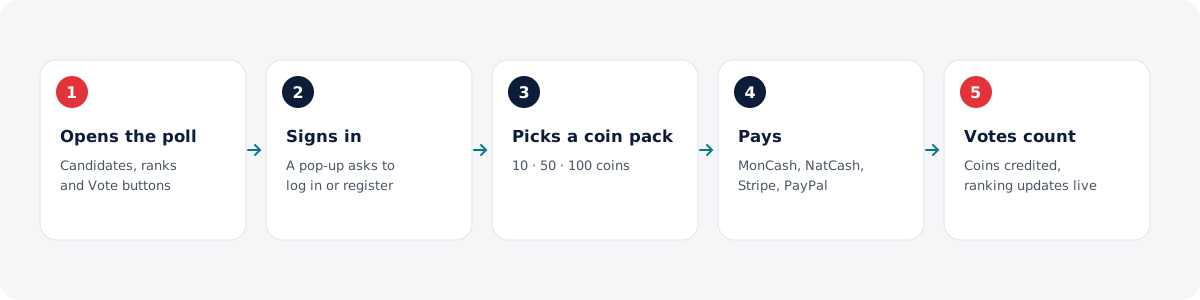
On the page with [ogou_poll], the voter sees a grid of candidates with photos, ranks (#1, #2…) and a Vote button. When they click Vote:
- If not signed in, a sign-in or registration window opens (without leaving the page).
- They choose a coin package.
- They choose a payment method (MonCash, Stripe…).
- They pay; the coins are credited automatically and the votes are applied.
- The counters and the ranking update live.
The Profile page ([ogou_profile]) shows the voter their status, coins invested, vote history and BOSS rank.
13. Managing transactions
Go to Ogou Poll → Transactions to see every payment.
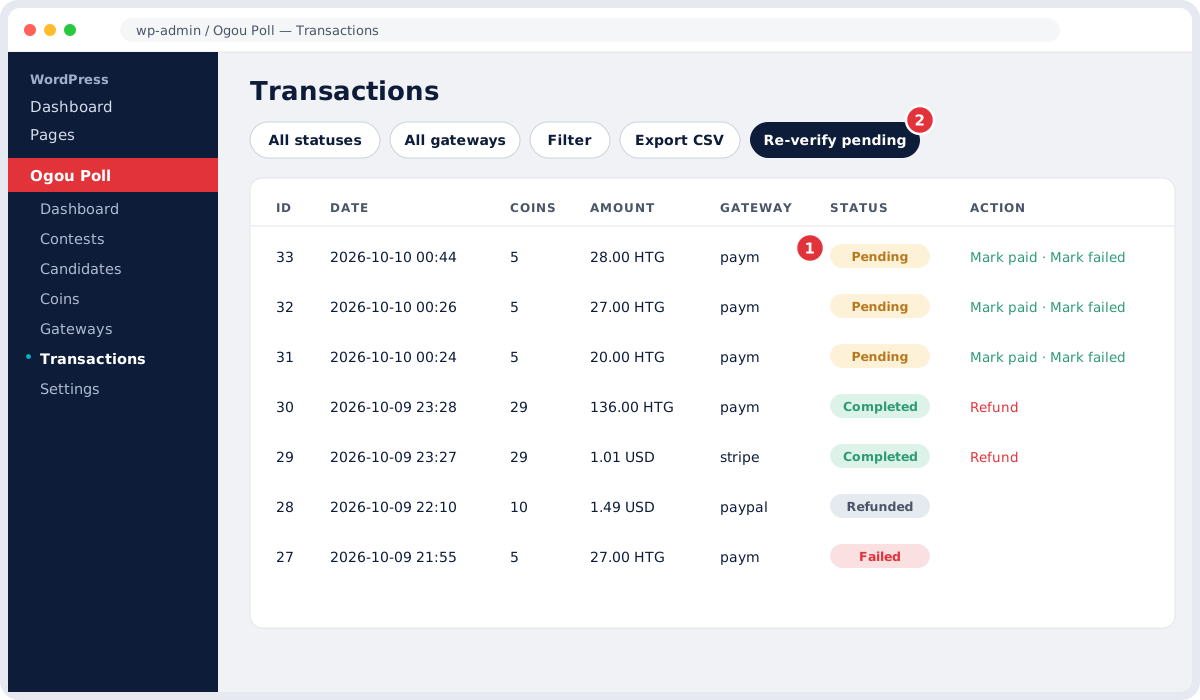
- Completed: the payment succeeded and the coins are credited.
- Pending: not confirmed yet (waiting for the gateway).
- Failed: the payment failed.
- Refunded: money returned.
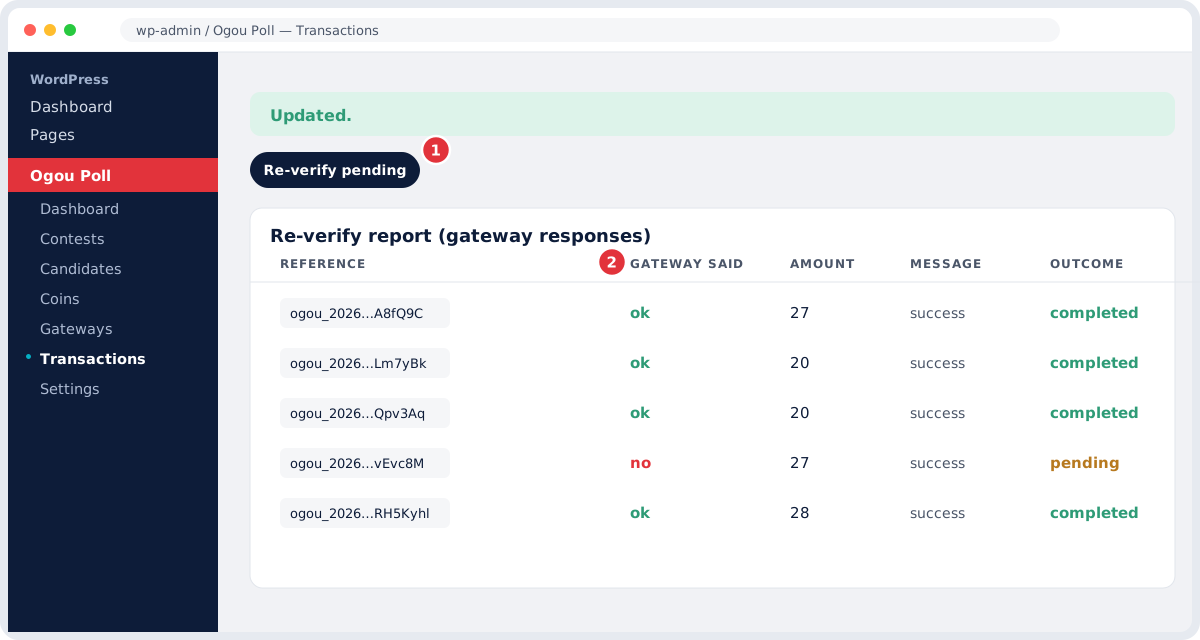
Tools: filter by status or gateway, Export CSV, Mark paid / Mark failed to change a status by hand, Refund (it also removes the coins), and Re-verify pending, which asks the gateway again about every “Pending” payment and credits the coins that were missing.
14. TV mode and live pages
[ogou_poll]: the main voting page refreshes by itself every few seconds; counters rise with an animation and the cards reorder.[ogou_tv]: a full-screen ranking (dark background, big text, a LIVE badge, medals for the top 3) to project on a big screen during a show. Put it on an empty page and project it.
15. OgouTV, videos and episodes
OgouTV is a separate plugin to show video episodes. It gives two shortcodes: [ogoutv_slider], a horizontal portrait slider for the latest episodes, and [ogoutv_grid], a 16:9 grid for your video library page. Add each episode under OgouTV → Add Episode (title, cover image, YouTube / Vimeo / file link, episode number, duration, logo, “NEW” badge).
16. Troubleshooting
A payment stays “Pending”
- Go to Transactions → Re-verify pending. It confirms payments already settled and adds the missing coins.
- If that is not enough, go to Pay’M PlopPlop → Run diagnostic. The table shows exactly what the gateway answers.
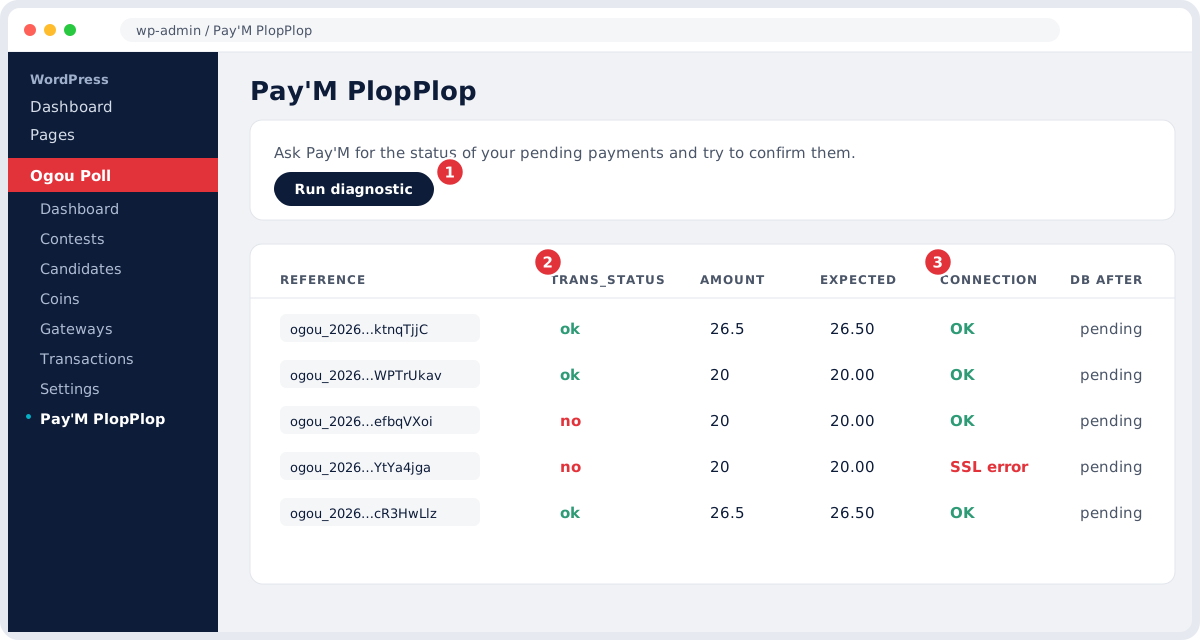
trans_status = okbut still pending: click Re-verify pending again (or check the core version).trans_status = no: the payment is not settled on the gateway side (maybe the person did not finish paying).- Connection = SSL error: untick “Verify SSL certificate” in the Pay’M settings, save and try again.
Automatic reconciliation (cron)
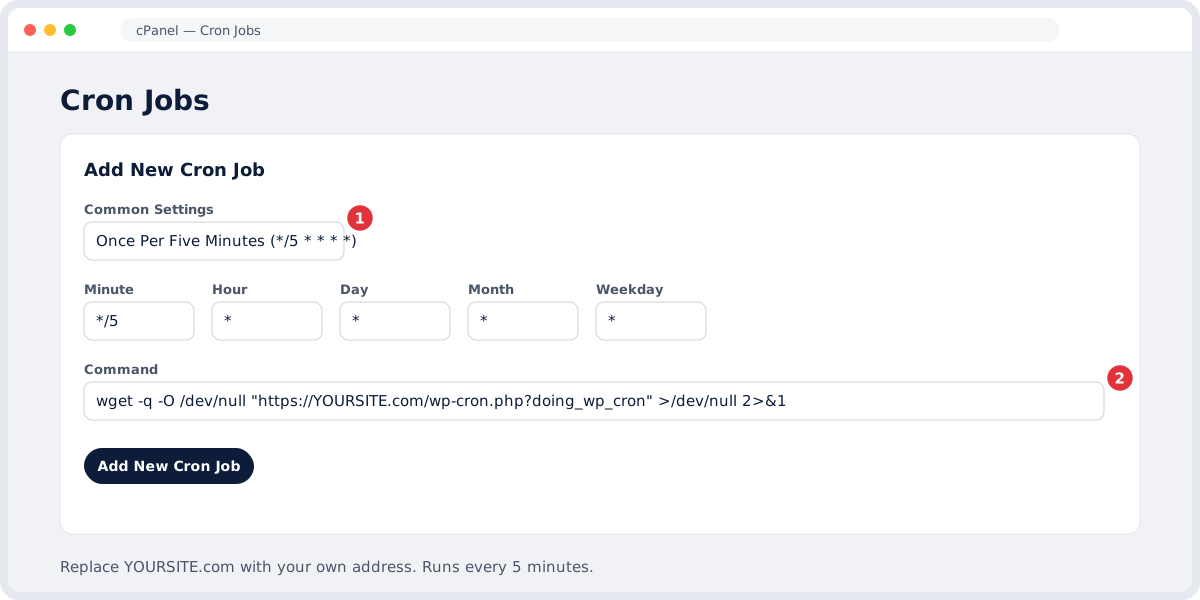
On HostGator, WP-Cron can be disabled. For payments to confirm by themselves, add a real cron in cPanel → Cron Jobs, every 5 minutes, with this command:
wget -q -O /dev/null "https://YOURSITE.com/wp-cron.php?doing_wp_cron" >/dev/null 2>&1
Changes do not show
Clear the cache (the “Caching” plugin) and press Ctrl+Shift+R in the browser.
17. Security and good practice
- Require login to vote: better control.
- Store hashed IP: keeps votes honest and respects GDPR (it is a fingerprint, not a clear IP).
- Clear the cache before every payment test.
- Set a real cron (see above) for reliable reconciliation.
- Keep gateway Client IDs and secret keys safe and never share them.
18. Frequently asked questions
How do I put a contest on a page?
Create the contest, copy its shortcode (for example [ogou_poll id="2"]) and paste it on a WordPress page.
How do I hide the results until the end?
In the contest form, untick “Show live results”.
How many votes does a coin give?
You decide, in Settings → “1 coin equals N votes”.
A payment succeeded but shows “Pending”. What do I do?
Click “Re-verify pending” in Transactions. If it persists, use “Run diagnostic” in Pay’M.
Can I use several payment methods?
Yes. Install each gateway (Pay’M, MonCash, Stripe, PayPal), configure them and enable them in Gateways.
How do I show the show’s videos?
Install OgouTV and use [ogoutv_slider] or [ogoutv_grid].
19. Site Mode: your whole site becomes the contest
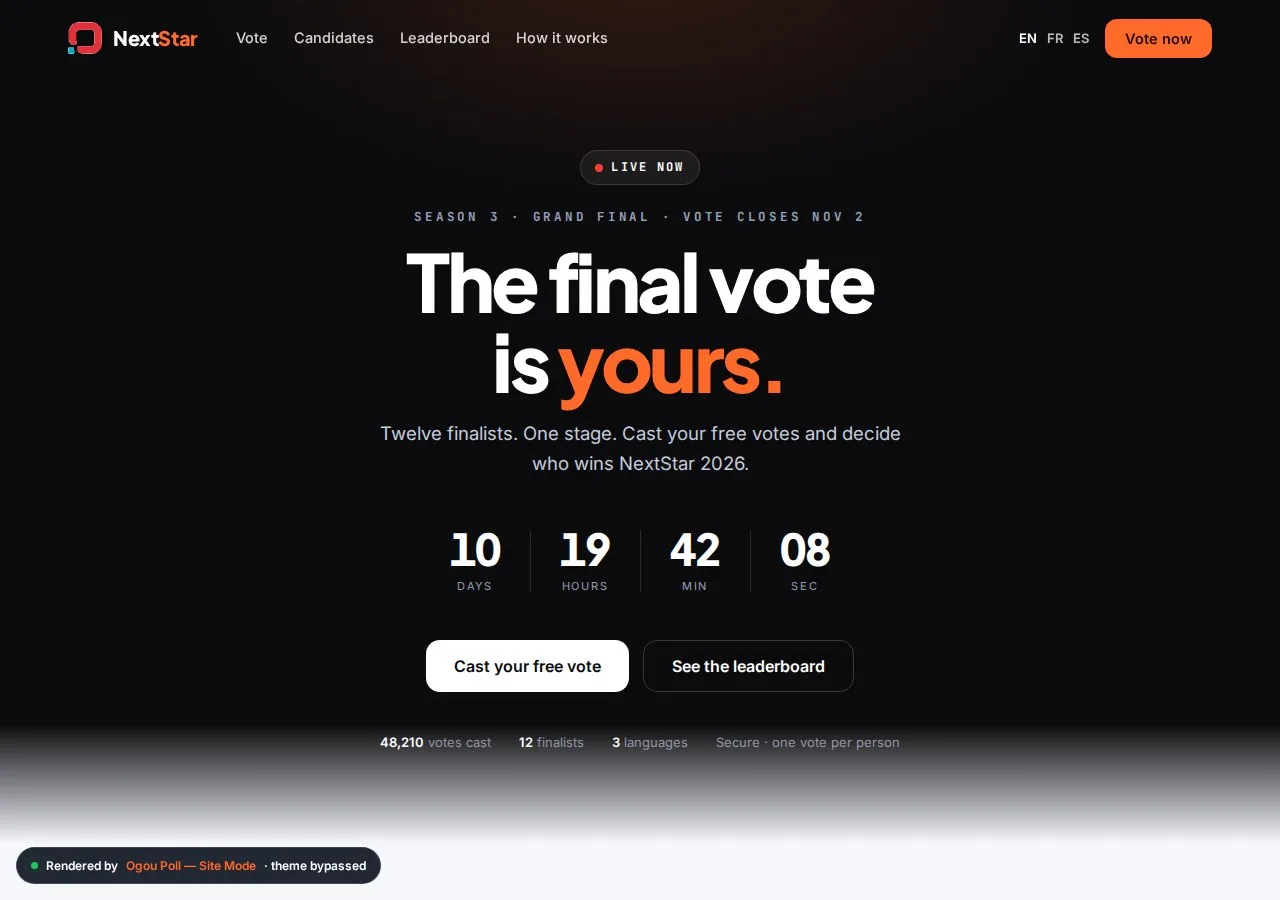
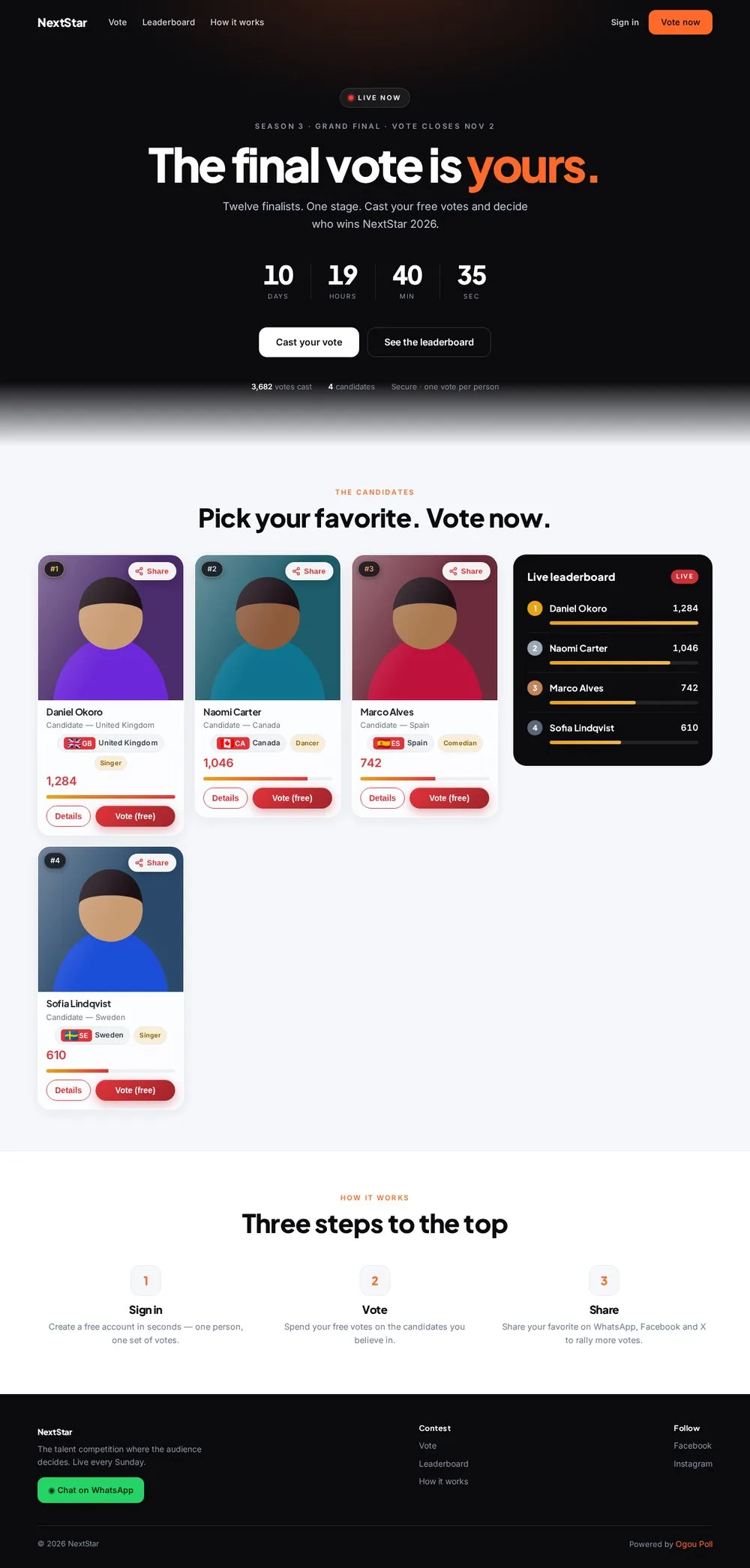
New in 3.54.0. With one switch, Ogou Poll draws the entire front of your site as a branded contest website, whatever theme is installed: a header, a hero with a live countdown, the voting grid, a live leaderboard, “How it works”, a footer and a branded sign-in screen. Turn the switch off and your theme takes over again; your shortcodes and blocks keep working.
The pictures below show a demo contest called “NextStar”, with made-up candidates.
Turn it on
- Go to Ogou Poll → Settings and open the group Site Mode — your whole site becomes the contest.
- Tick Enable Site Mode (take over the front end).
- Keep Lean mode ticked (recommended): it removes the theme’s own CSS and JavaScript, so the site stays fast and the design clean. Plugins and Ogou Poll itself are not touched.
- Choose the Featured contest, or leave “Most recent active contest”.
- Fill in the texts below and press Save settings.
| Field | What it does |
|---|---|
| Site name | Shown in the header and on the sign-in screen. Empty = the WordPress site title. |
| Logo image URL | Upload the logo in Media, then paste its URL here. |
| Small line above the headline | For example “Season 3 · Grand Final”. |
| Hero headline | Wrap a word in <em>…</em> to colour it: The final vote is <em>yours.</em> |
| Hero subline | One sentence under the headline. |
| Footer text | A short description of your competition. |
| WhatsApp number | International format, digits only (for example 15551234567). It adds a “Chat on WhatsApp” button. |
| Facebook, Instagram, TikTok, YouTube URLs | Shown in the footer. |
| Hide “Powered by Ogou Poll” | Pro only. The free edition always shows the line. |
The accent colour of Site Mode follows the Primary colour you set in the design settings. The countdown counts down to the end date of the featured contest.
The branded sign-in screen
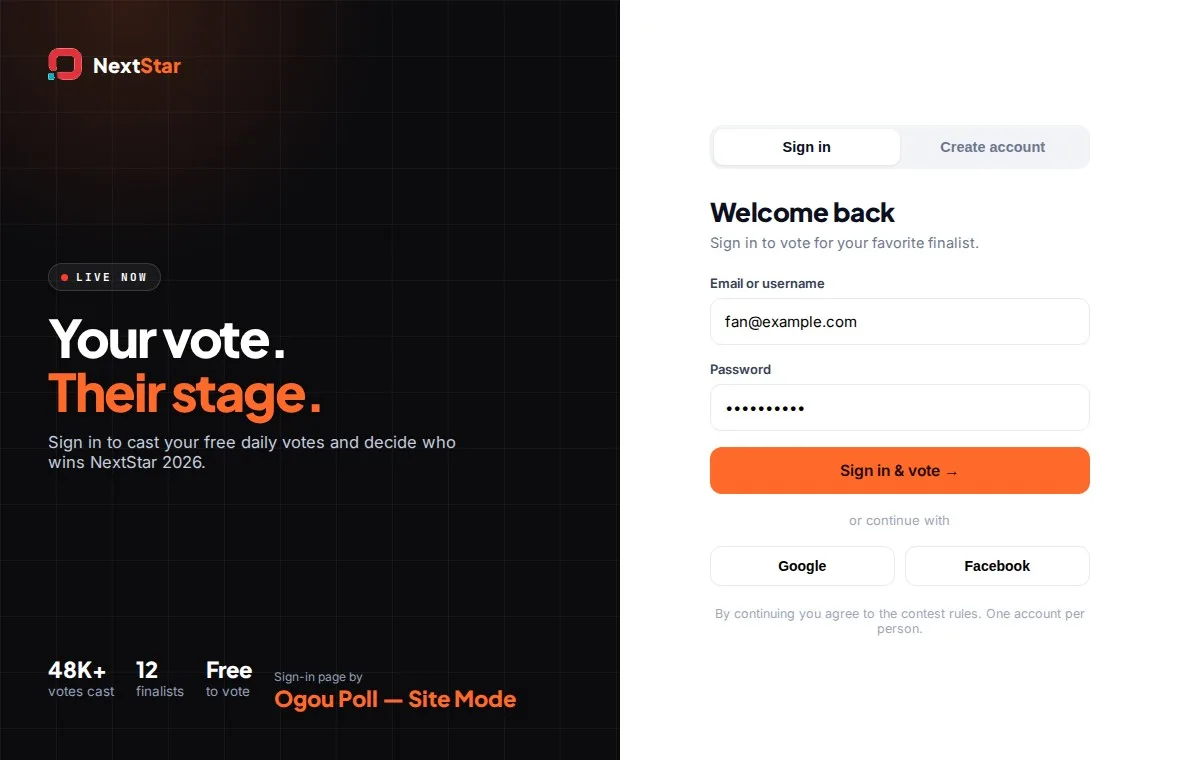
While Site Mode is on, WordPress’s login page is replaced by a dark, branded screen with your logo and colours (“Sign in to vote”), so voters never see WordPress.
Other pages
Every other page, post or 404 is shown inside the same header and footer, so the whole site looks like one competition.
20. Candidate details, layouts and skins
- New candidate fields. In Ogou Poll → Candidates you can now set a category (Model, Artist, Entrepreneur…), a country with its two-letter ISO code (the flag appears next to it automatically), and a short tagline shown under the name.
- Five layouts for the grid: Cards, List, Podium, Compact and Showcase. Set a default in Settings → Design (“Candidate grid layout”), or choose one for a single page:
[ogou_poll id="2" layout="list"]. - Skins. A dozen visual skins in the Pro edition (the free edition has Liquid Glass and Flat Modern), including Aurora, Spotlight, Neon Arena, Editorial, Kente, Gala and Pop. You can see each one in the skin picker in Settings.
- Stats bar. Add
show_stats="1"to the shortcode to show a bar above the grid: candidates, total votes, current leader and voting status. - Share buttons. Every candidate card has a Share button (WhatsApp, Facebook, X, Telegram, copy link).
21. Blocks, widget and extra shortcodes
- Blocks in the editor: Ogou Poll, Ogou Leaderboard and Ogou Top 3. Choose the contest from a menu: no shortcode and no ID to remember.
- Widget “Ogou — Top 3” for any widget area.
- Shortcode
[ogou_candidate_card]shows a single candidate card.
22. Big live events
For a final night with many voters, Ogou Poll is built to stay fast: the live board and the grid are served from a short cache (tune the refresh time in Settings → Vote limits), vote counts are collected in memory and written to the database in batches about every 30 seconds, and the rate-limit checks use the object cache. Two things help a lot: a real server cron job (see the Music manual for the exact line) and a persistent object cache such as Redis if your host offers it.
23. Editions and updates
- Ogou Poll (free, on WordPress.org): contests, candidates, free voting with a number of free votes per user, the live leaderboard, two skins, Site Mode, blocks and the widget.
- Ogou Poll Pro (ogoulabs.com): everything above plus coin packs, payment gateways, judges, rounds and elimination, presenter mode, VIP passes, promo codes, winner payouts, advanced analytics and OgouTV links.
- Updates. Pro is updated from ogoulabs.com with your licence, never from WordPress.org. Keep only one of the two editions installed on a site. If a Pro site was ever overwritten by the free plugin, install the Pro zip again: your contests, votes and candidates stay in the database.
