
Ogou Multilanguage — User guide
Install, set up and use Ogou Multilanguage: languages, the editor, AI translation, Elementor, WooCommerce, SEO and diagnostics.
Ogou Multilanguage turns one WordPress site into an unlimited-language site: no second install and no duplicate site to maintain. You write a page once; each language gets its own translated copy at its own clean URL, and visitors are served the right language automatically.
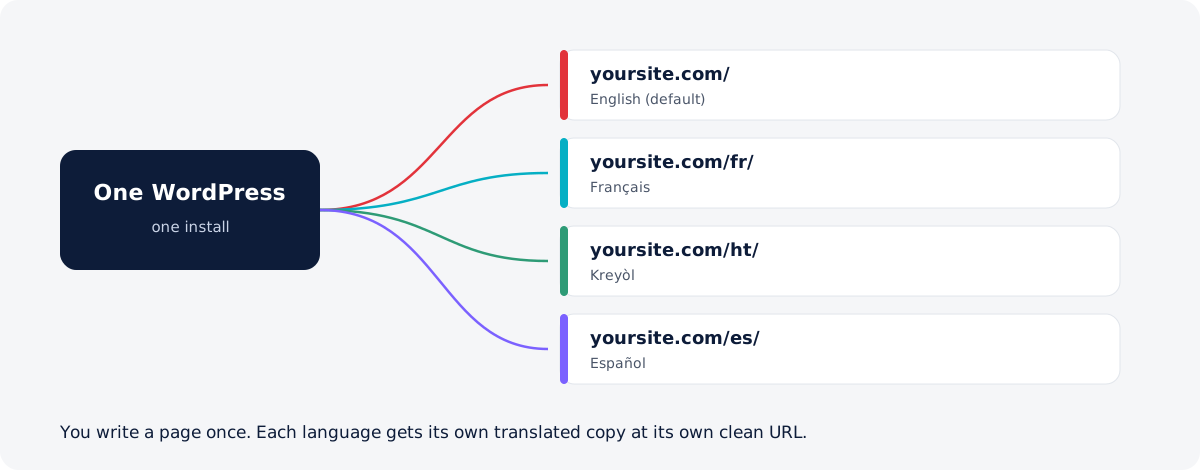
Who it is for. Site owners, agencies and content teams who need a professional multilingual site on WordPress, a direct alternative to WPML and Polylang, with AI-assisted translation built in.
What it translates. Posts, pages and custom post types; Elementor and Gutenberg content (and any Elementor addon); WooCommerce products; forms; menus; taxonomies; media alt text; interface strings; and SEO meta. Each translation is a real WordPress page with its own URL and SEO, so your site’s structure never has to change.
This manual covers version 0.1.104. Follow sections 2 to 4 once to install and set up; after that each section stands on its own. Every screen lives under the Multilanguage menu in WordPress admin.
Install and activate your license
Requirements. WordPress 6.4 or newer, PHP 8.1 or newer, and pretty permalinks (Settings → Permalinks → any option other than “Plain”).
- In WordPress admin, go to Plugins → Add New → Upload Plugin.
- Choose
ogou-multilanguage.zip, click Install Now, then Activate. - On activation the plugin creates its database tables and translator roles and records your site’s current language as the default language.
License. The plugin stays locked until a valid license is active: no front-end translation and no translation feature works until then.
- Go to Multilanguage → License.
- Paste your license key (from your OgouLabs.com order) and click Activate. The store connection is built in, so the key is all you need.
- The page reloads unlocked; a green status confirms it.
Auto-updates arrive through the normal WordPress Updates screen. If the license server is briefly unreachable, an already-activated site keeps working for up to 14 days. Deactivating the license, or a revoked key, re-locks the plugin immediately.
First-run setup wizard
The first time you open Multilanguage → Dashboard, a short wizard walks you through three choices. You can change any of them later under Languages and Settings.
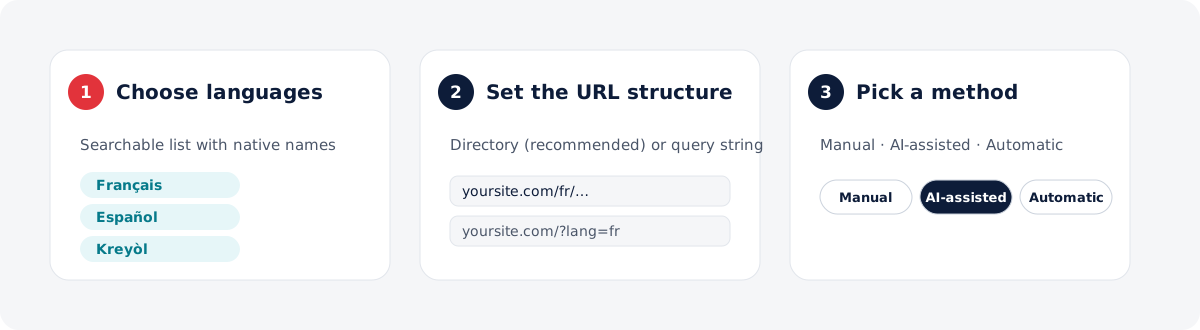
- Step 1, languages. Pick your languages from a searchable list shown with native names (Français, Español, Kreyòl…). Your current site language is already the default and cannot be removed.
- Step 2, URL structure. Directory (
yoursite.com/fr/…, recommended for SEO) or Query string (yoursite.com/?lang=fr). See the URLs section below. - Step 3, translation method. Manual (you translate in the editor), AI-assisted (one-click drafts you review) or Automatic (every new or updated page is queued for AI translation on publish). The last two need an AI provider.
Managing languages
Go to Multilanguage → Languages at any time.
- Default language. Your original site language. It is served at the site root with no URL prefix and is the source every translation is made from. It cannot be deleted.
- Add a language. Click Add language, pick from the list, and save.
- Active vs hidden. An active language shows in the switcher, resolves on the front end and is advertised to search engines. A hidden language is kept for work in progress: it is excluded from the switcher, hreflang and the sitemap, so unfinished translations are never exposed.
- Slug. The URL segment in directory mode (
fr→/fr/), editable per language. - Flag and name. Each language carries a bundled SVG flag (so flags render on Windows too) plus its name and native name.
- Order. Drag languages into the order you want in the switcher.
Tip: keep a language hidden while you translate its first pages, then make it active when it is ready to go live.
A tour of the control center
The Dashboard is your home base; each other screen handles one job. The interface is iOS-style, with an Auto / Light / Dark theme toggle.
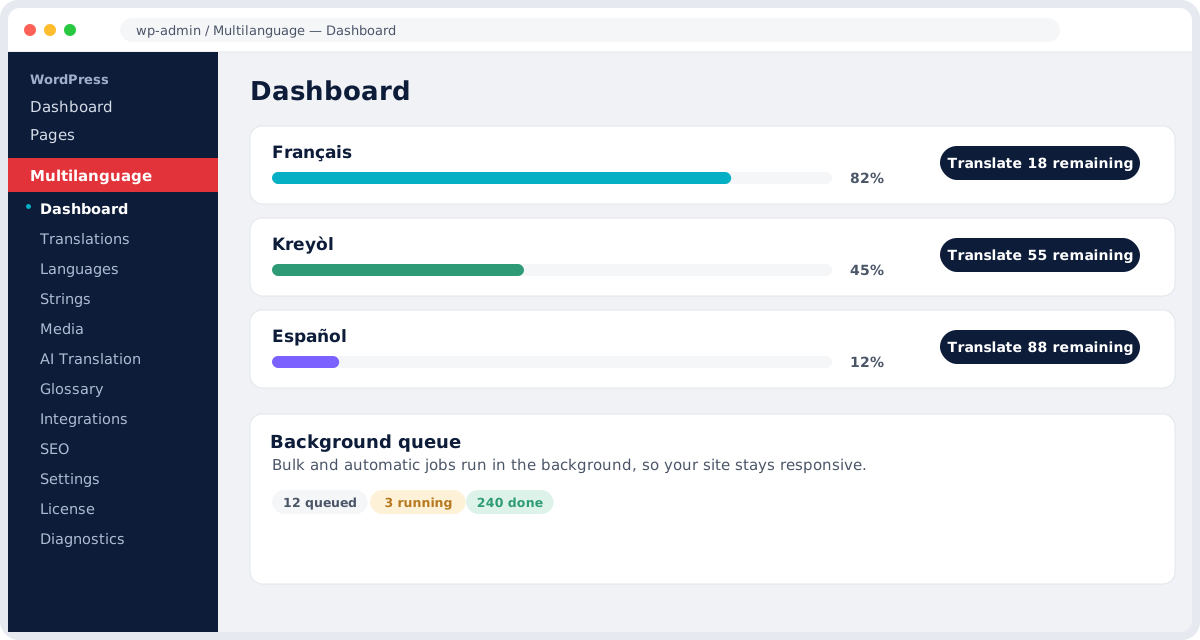
| Screen | What it does |
|---|---|
| Dashboard | Translation progress per language, a one-click “Translate N remaining” for each, and the background queue. |
| Translations | Every translatable item, filterable by post type (Show) and Status (Untranslated / Needs review / Outdated / Published). |
| Languages | Your language set. |
| Strings, Media | Interface strings and image alt text. |
| AI Translation, Translation Memory, Glossary | The AI engine and its quality controls. |
| Translators | Role management. |
| Integrations | Detected plugins (WooCommerce, Elementor, forms, SEO). |
| SEO | hreflang, x-default and the multilingual sitemap. |
| Settings | URL mode, missing-translation behavior, comments, auto-translate, site identity, white-label. |
| License | Activate or manage your license. |
| Diagnostics | Health check, repair and the translation inspector. |
Agency options. Client mode hides the configuration screens, and a white-label name rebrands the menu for your clients.
Translating a page: the segment editor
Open Translations, find the item, and click the language you want to translate into. The editor splits the content into one field per sentence. You never see or touch raw HTML or CSS: tags, inline styles, buttons and layout are protected and reassembled automatically when you save.
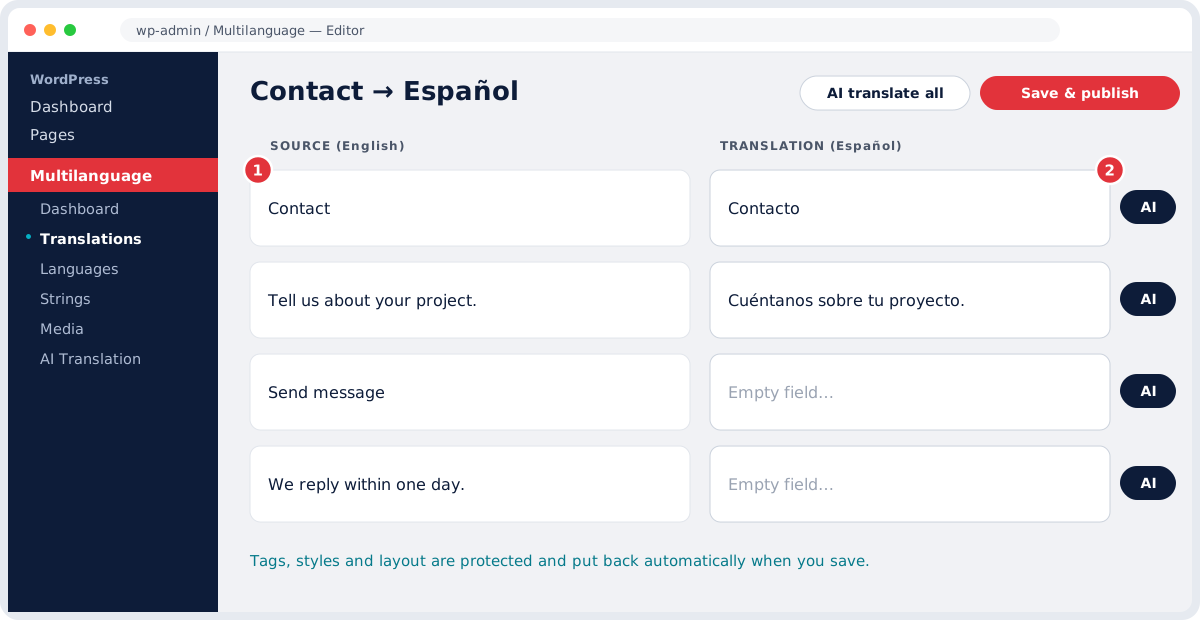
- Per field. Each segment shows the source on the left and an editable field on the right. The AI button translates that one field; copy source starts from the original text.
- All at once. AI translate all fills every empty field in one go (needs an AI provider).
- Saving and review. Save & publish makes the translation live. Save as draft stores it without publishing and marks it “needs review”. A logged-in editor can preview a still-draft
/fr/…page without hitting a 404. - Title and slug. Translate the page Title too: the translated URL is built from it (Contact →
/es/contacto).
AI translation
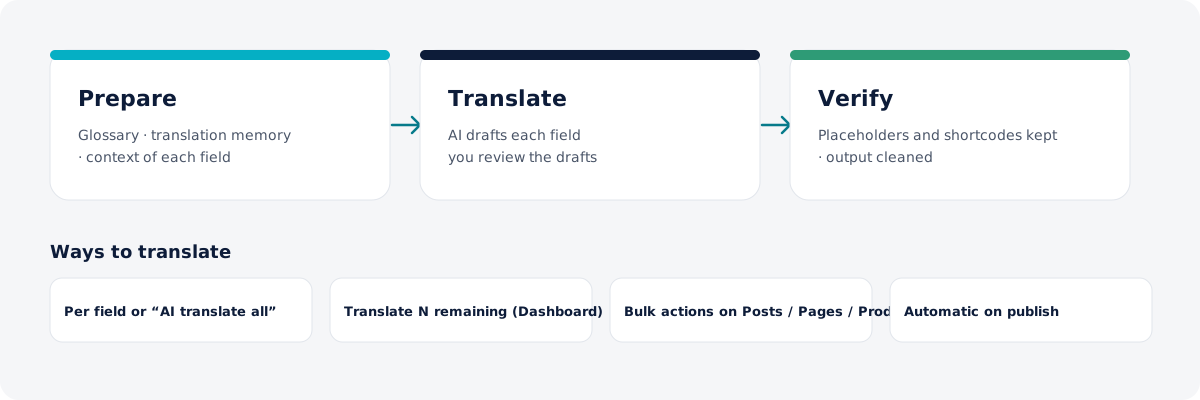
AI translation is optional but powerful: it drafts translations you can review, or runs fully automatically.
Set up a provider
- Go to Multilanguage → AI Translation.
- Choose an OpenAI-compatible provider (OpenAI, Groq, Gemini, and others) and paste its API key.
- Click Load models and pick a chat model from the live list.
- Optionally set a fallback provider, used if the first one fails.
Quality controls (all automatic)
- Glossary. Your preferred translation for specific terms (Offer → Offre), for a language pair or any language.
- Translation memory. Reuses translations you already approved, for consistency and lower cost.
- Placeholder protection. Rejects a translation that drops technical placeholders or shortcodes.
- Output cleaning. Strips stray labels, quotes or code fences the model adds.
- Context. Each field is translated knowing what it is (title, excerpt, SEO meta, product field, form label…).
Ways to translate
- Per field, or AI translate all, in the editor.
- Translate N remaining per language on the Dashboard.
- Translate everything into all languages: one button, whole site.
- Bulk actions on the Posts / Pages / Products lists: Ogou: Translate to all languages (AI), or Create translations (no AI) for hand translation.
- Automatic on publish: enable in Settings; every new or updated page is queued into all languages.
Bulk and automatic jobs run in a background queue, so your site stays responsive and the same page and language are never queued twice at once.
Elementor and page builders
Elementor pages translate without breaking the layout. The plugin reads and writes Elementor’s own data, so columns, spacing, colors and widgets stay exactly as designed. Only the words change.
- Any widget, any addon. Text is detected automatically in core widgets and third-party addons (ElementsKit, Essential Addons, Happy Addons, and others), including repeater widgets like tabs, accordions and icon lists.
- Only content, never design. Fonts, colors, alignments, sizes, CSS classes, icon names, URLs and dynamic tags are never shown and never changed.
- Independent copies. Each language gets its own unique Elementor element IDs, so saving one language never affects another.
- Theme Builder (Elementor Pro). A translated page inherits its source page’s Header/Footer display conditions.
After updating the plugin on an existing site, open an affected page in the Ogou editor once and click Save. If a translated page ever shows source text, clear your site cache and run Elementor → Tools → Regenerate CSS once. Gutenberg and the Classic editor translate the same way.
WooCommerce products
With WooCommerce active, products and their categories/tags become translatable, and translated products stay fully functional.
- Functional copies. Price, sale price, stock, tax class, dimensions, attributes, gallery and product-data flags are copied to each translation. The SKU is intentionally not duplicated.
- Custom attributes. Labels and values appear as their own fields in the editor, with AI buttons. Global attributes such as Color translate through their terms.
- The purchase note and the short description are translatable.
Translate products from Translations (Show → Products), from the product list’s bulk actions, or automatically on publish.
Everything else you can translate
- Forms. Contact Form 7, WPForms, Gravity Forms and Forminator are detected under Integrations. Labels, placeholders, descriptions, options and messages are translated per language.
- Taxonomies. Translate each term’s name and description (per-term AI button, AI translate all, Save all).
- Menus. Keep one menu; it is localized per language, falling back to the original where there is no translation yet.
- Media alt text. Under Media, set per-language alt text, good for accessibility and image SEO.
- Interface strings. Under Strings, translate theme and plugin text captured as you browse. Import and export as CSV, JSON or PO.
- SEO meta. With Yoast or Rank Math active, the SEO title and meta description are translatable per page.
The language switcher
Add the switcher wherever you like:
- Block: add the Ogou Language Switcher block.
- Elementor widget: search for Ogou Language Switcher.
- Classic widget: in a sidebar or footer widget area.
- Shortcode:
[ogou_language_switcher], anywhere, including templates.
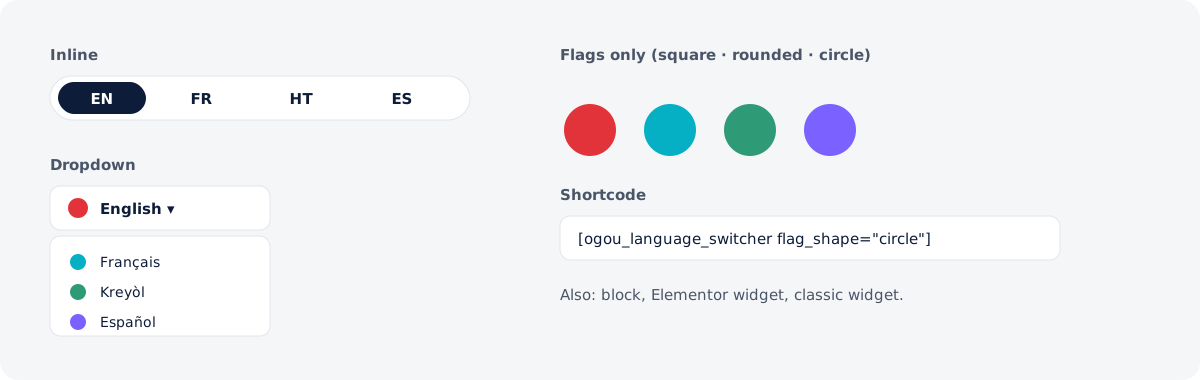
Display options. Show a flag and/or the language code, the name and/or the native name; choose a layout: inline, dropdown (click-to-open, works without JavaScript) or compact. Flags are real SVG images with Square, Rounded or Circle shapes (flag_shape="circle" on the shortcode).
Where it points. Each entry links to the translation of the current page; if there is none yet, it follows your missing-translation setting. The admin bar also shows a globe menu with View this page in… and quick Translate / Edit links.
URLs, SEO and the multilingual sitemap
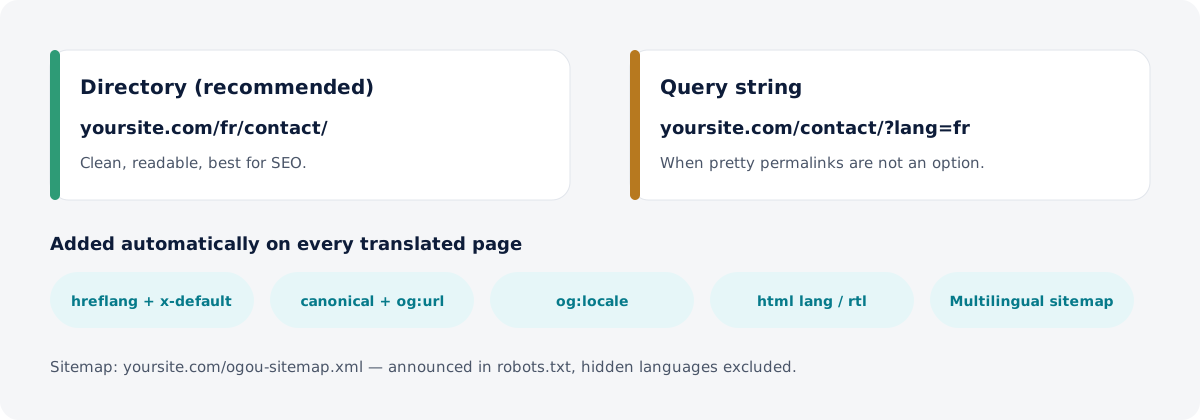
- Directory (recommended):
yoursite.com/fr/contact/. Clean, readable, best for SEO. - Query string:
yoursite.com/contact/?lang=fr. Use it when pretty permalinks are not an option.
Clean slugs. Translated URLs use a readable slug built from the translated title, never a numbered one. This works on subdirectory and staging installs too.
Per-language homepage. /fr/ shows the translated front page and is the clean home link in menus and share URLs, while is_front_page() and is_home() keep working.
Missing-translation behavior (Settings): show the original, redirect to the original, show a 404, or send to the language home.
SEO, automatic on every translated page: hreflang alternates and x-default, canonical and og:url (unless your SEO plugin owns them), og:locale, and <html lang> / dir="rtl" for right-to-left languages.
Multilingual sitemap. A dedicated sitemap at yoursite.com/ogou-sitemap.xml lists every published page in every indexable language with its hreflang alternates, the format Google recommends for international sites. It is announced in robots.txt, excludes hidden languages, and can be turned off under Settings → SEO. It adds to, and does not replace, your existing sitemap.
Review workflow and translator roles
Translations can go live immediately, or pass through review first.
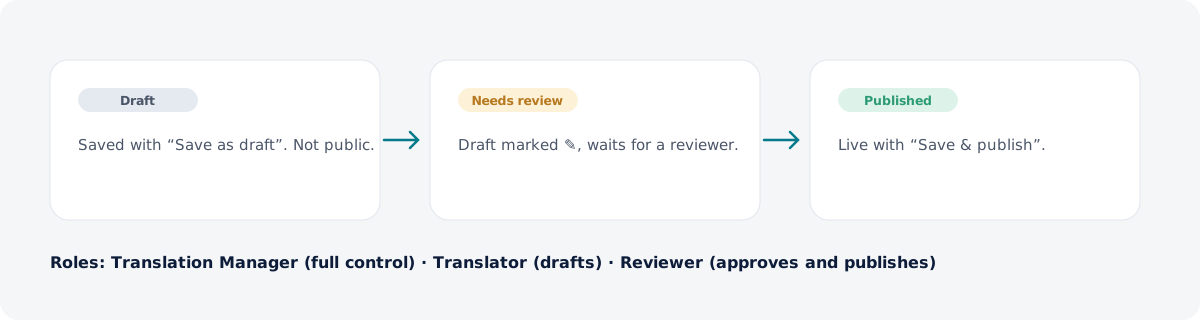
- Draft: saved with Save as draft; not visible to visitors. An editor can still preview it while logged in.
- Needs review: a draft marked with a ✎ badge, waiting for a reviewer.
- Published: made live with Save & publish.
On Translations, the Status filter lets a reviewer find exactly what needs attention. Bulk and automatic jobs publish directly.
| Role | Can do |
|---|---|
| Translation Manager | Full control of languages, settings and all translations. |
| Translator | Create and edit translations (save as draft). |
| Reviewer | Approve and publish translations. |
Assign a role on the user’s WordPress profile, or under Multilanguage → Translators.
Diagnostics and troubleshooting
Multilanguage → Diagnostics is your first stop whenever something looks wrong.
- Health check: a pass/warn/fail report across languages, default language, permalinks, AI provider, database tables, translation integrity and licensing, with a Copy report button.
- Repair: one click to recreate missing tables and refresh URL rules (fixes most “page not found” issues after setup).
- Translation inspector: enter a source ID to see, per language, the published status, slug, whether the Elementor content really saved, the stored text and a live router check.
- Trace a URL: paste an address that 404s to see how the router resolves it.
| Symptom | Likely cause | Fix |
|---|---|---|
| A translated page shows 404 | Rewrite rules not refreshed | Diagnostics → Repair, or Settings → Permalinks → Save |
| Translated page shows the source text | Cached page or stale Elementor CSS | Clear site cache; Elementor → Tools → Regenerate CSS |
| The editor opens blank on an older page | Fields detected after an update | Open the page in the Ogou editor and click Save once |
| /fr/ shows the blog, not the homepage | Older version | Fixed in 0.1.102+; update the plugin |
| A language is missing from the switcher or sitemap | It is hidden or inactive | Languages → set it active |
| AI buttons do nothing | No AI provider configured | AI Translation → add a provider + Load models |
| Everything is locked | License not active | License → activate your key |
| A new term is not translated on the front end | Not translated yet | Translate it with the taxonomy tools |
If a problem survives all of this, use Copy report on the Health check and include it when you contact support.
Frequently asked questions
Do I need a separate site for each language? No. One WordPress install serves every language.
Will translating break my Elementor design? No. Only text changes; layout, styles and widgets are preserved, and each language is an independent copy.
Do I have to use AI? No. You can translate entirely by hand. AI is optional, and you review every draft.
Which AI providers work? Any OpenAI-compatible provider (OpenAI, Groq, Gemini, and others). You bring your own API key.
Is it good for SEO? Yes. Each language has its own clean URL, with hreflang, x-default, canonical and a dedicated multilingual sitemap.
Does it work with my SEO plugin? Yes. With Yoast or Rank Math active, Ogou translates their SEO fields and steps aside on the canonical tag; its sitemap is additive.
Can my clients use it without seeing the settings? Yes. Turn on Client mode and set a white-label name.
What happens to a page with no translation yet? It follows your missing-translation setting.
Can I move from WPML or Polylang? Ogou exposes the common WPML hooks and includes migration adapters, so themes and plugins that expect WPML keep working.
How do I update the plugin? Once your license is active, updates arrive through the normal WordPress Updates screen.
Something looks wrong, what first? Open Diagnostics, run the Health check, and try Repair.
