
Ogou Travel — User manual
Run a travel agency from WordPress: trips and seats, quotes and offers, payments, the 7-step form, certified PDFs, reminders and the team portal.
Ogou Travel runs the daily work of a travel agency inside WordPress. Travelers ask for a quote, book a group trip and a seat, pay a deposit online and receive a certified PDF; the team follows every file from a private portal, on a computer or a phone. This manual explains each step, for the agency team and for what the traveler sees.
The screenshots come from a demo agency (“Horizon Tour & Travel”) with the interface in French. The same screens exist in English and Spanish for travelers, and the team portal also speaks Kreyòl.
How it works: four spaces, one system
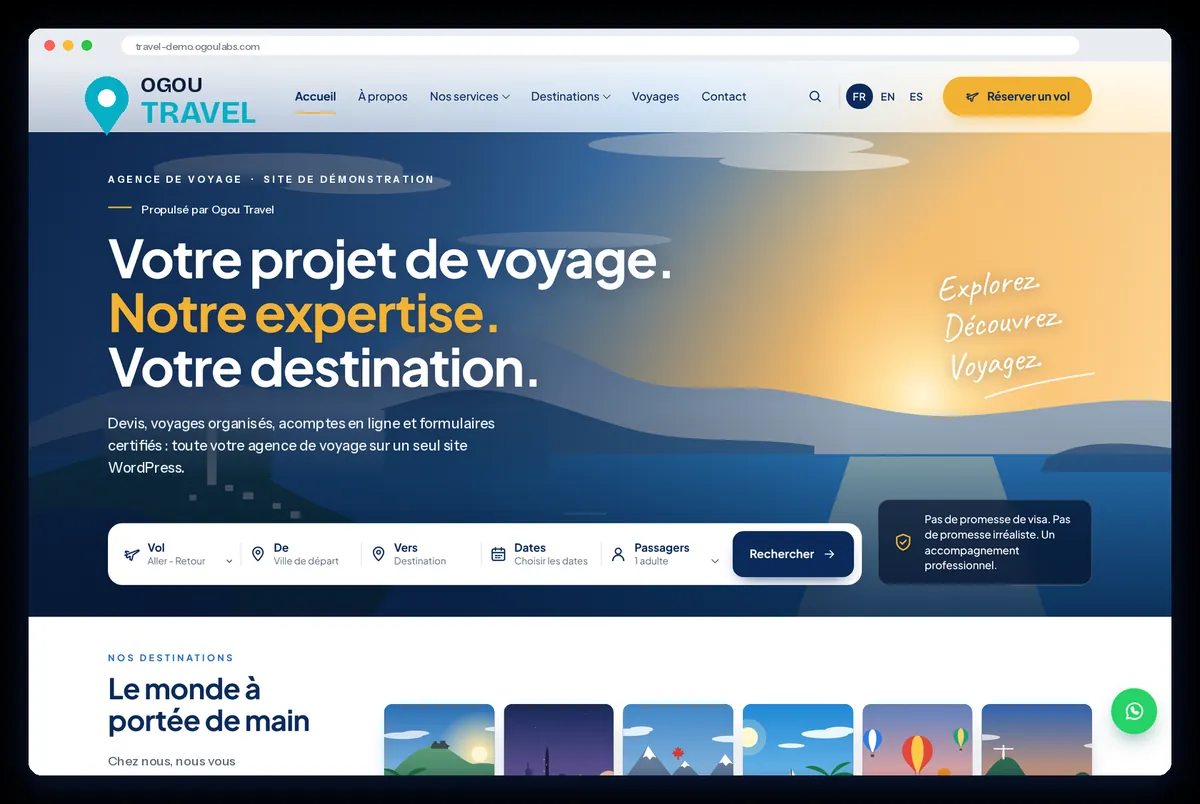
- Public website (French, English, Spanish): destinations, group trips, services and the quote form.
- Client area “My trips”: the traveler follows the file, accepts an offer, pays and fills in the forms. It opens from a private link sent by e-mail, with no password.
- Team portal, on its own address: files, payments, forms to check, catalog, departures and reports, without touching WordPress.
- WordPress (management): settings, payment keys and each team member’s permissions.
The client journey fits on one line: visit → request → offer → payment → form → departure.
Before you start (management)
- Install and activate the plugin, then open its settings in WordPress.
- Enter the agency details (name, phone, WhatsApp, e-mail, address) and choose the languages of the website.
- Add the payment keys: Stripe (card), PayPal and Paystack. Until live keys are in place, the site runs in test mode and shows a red “payments are simulated” bar.
- Create the team members and give each one an access level (see “Who sees what”).
- Set the portal address (for example a
portal.sub-domain) and send each person their invitation.
Before going live: real terms and privacy texts, real photos and texts, live payment keys, the portal address, a site icon and backups, then turn on Google indexing on launch day.
The public website
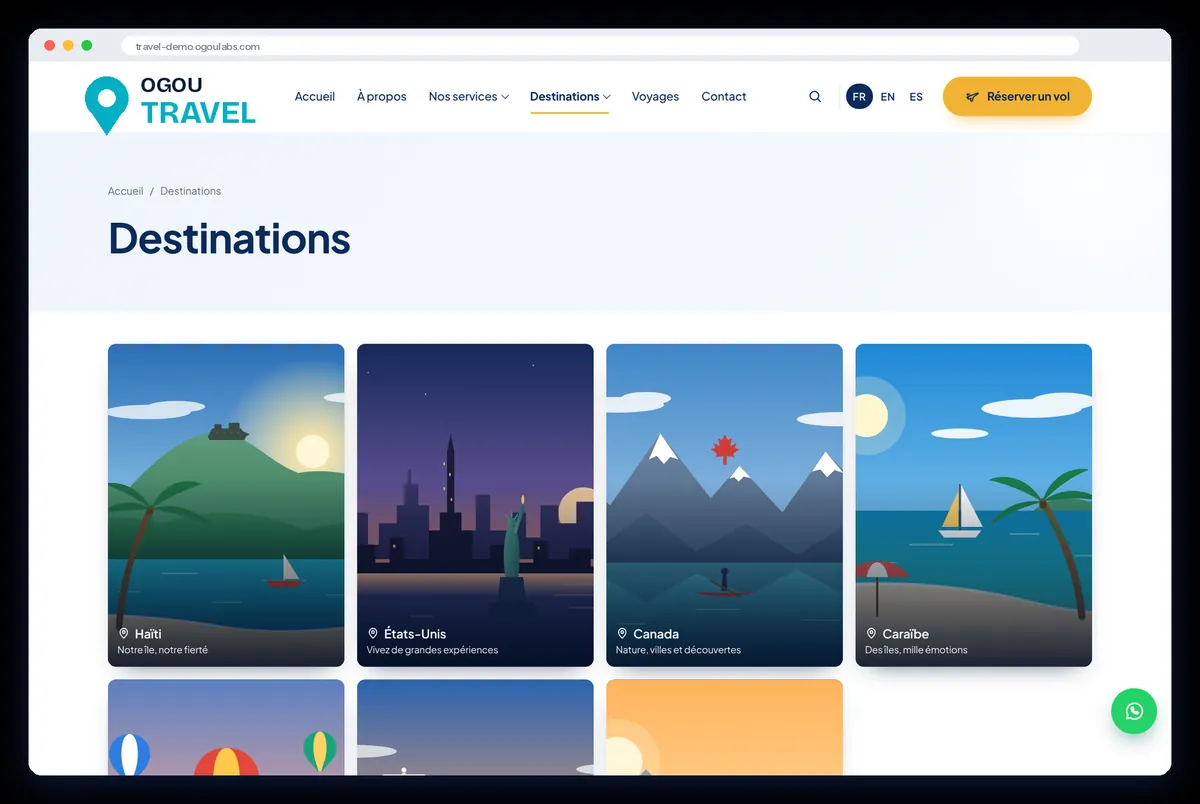
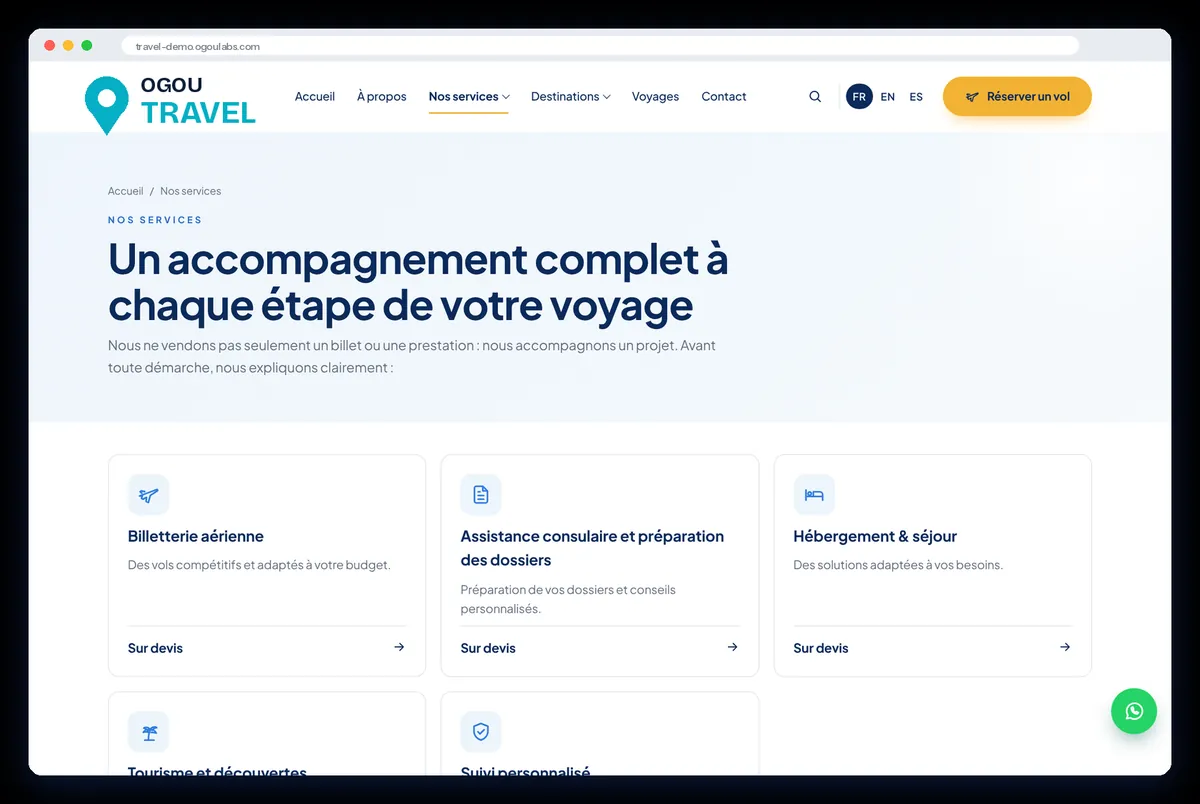
Each destination page shows photos, practical information and the trips that go there. Each service (air tickets, visa and consular help, hotels and stays…) leads to a quote request. Everything follows the visitor’s language: pages, e-mails, PDFs and error messages. Each language has its own pages for Google.
Create a group trip (team)
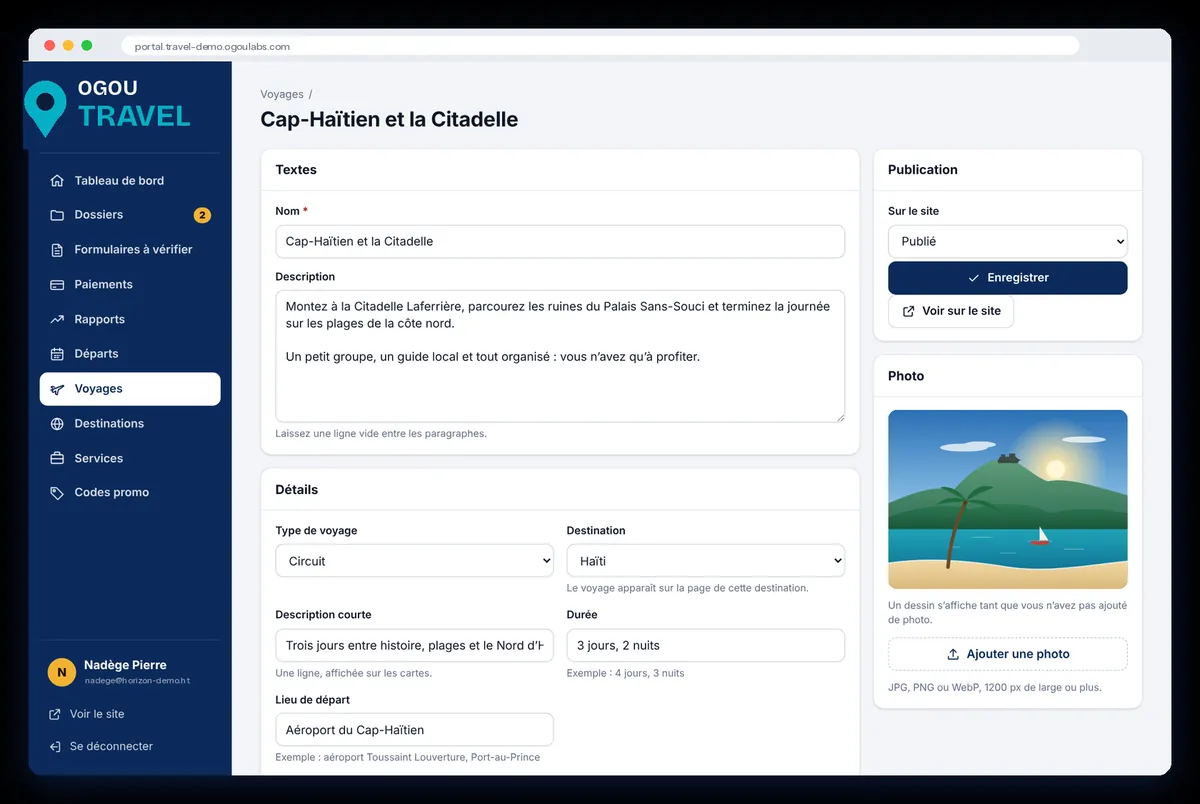
- In the portal, open Trips and create a trip, or open one to edit it.
- Fill in the texts (name, description, short line for cards), the details (trip type, destination, duration, departure place) and add a photo (JPG, PNG or WebP, at least 1200 px wide).
- Choose Publication: Public and save. The trip appears on the website at once.
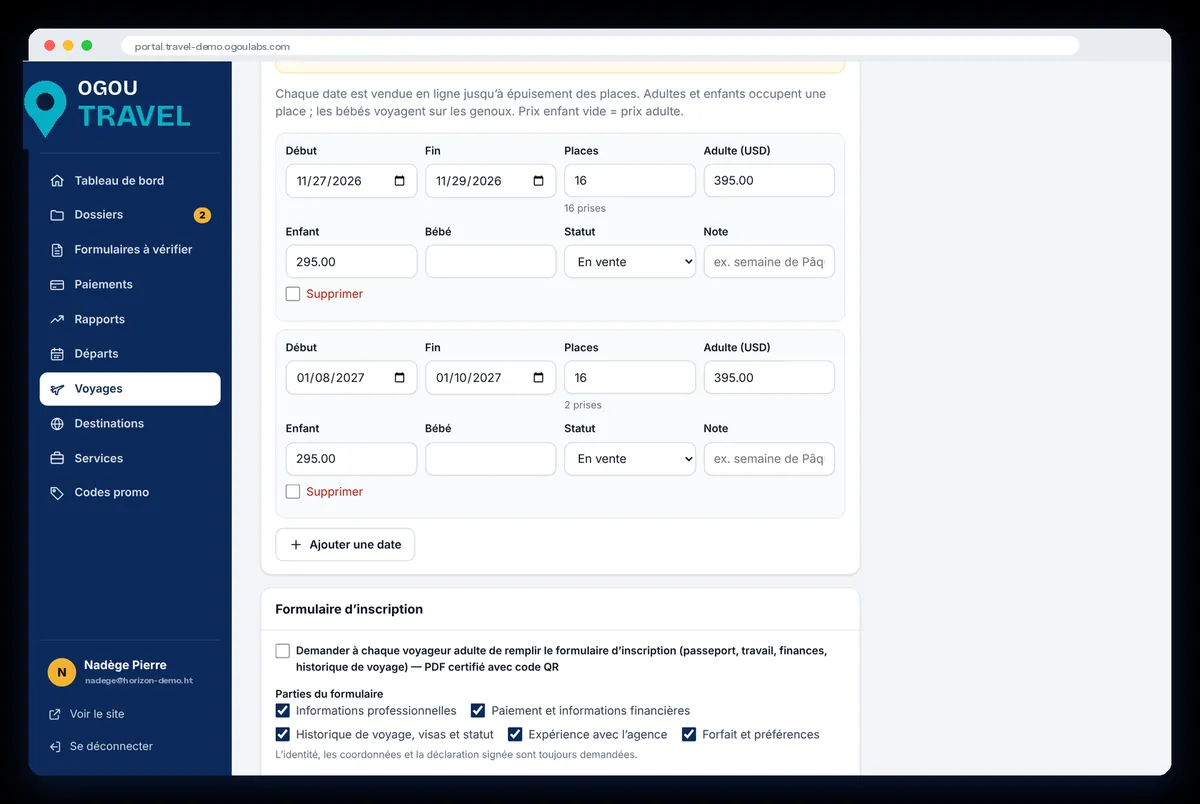
- Add the dates: for each departure, the start and end dates, the number of seats and the adult, child and infant prices.
How a traveler books a trip
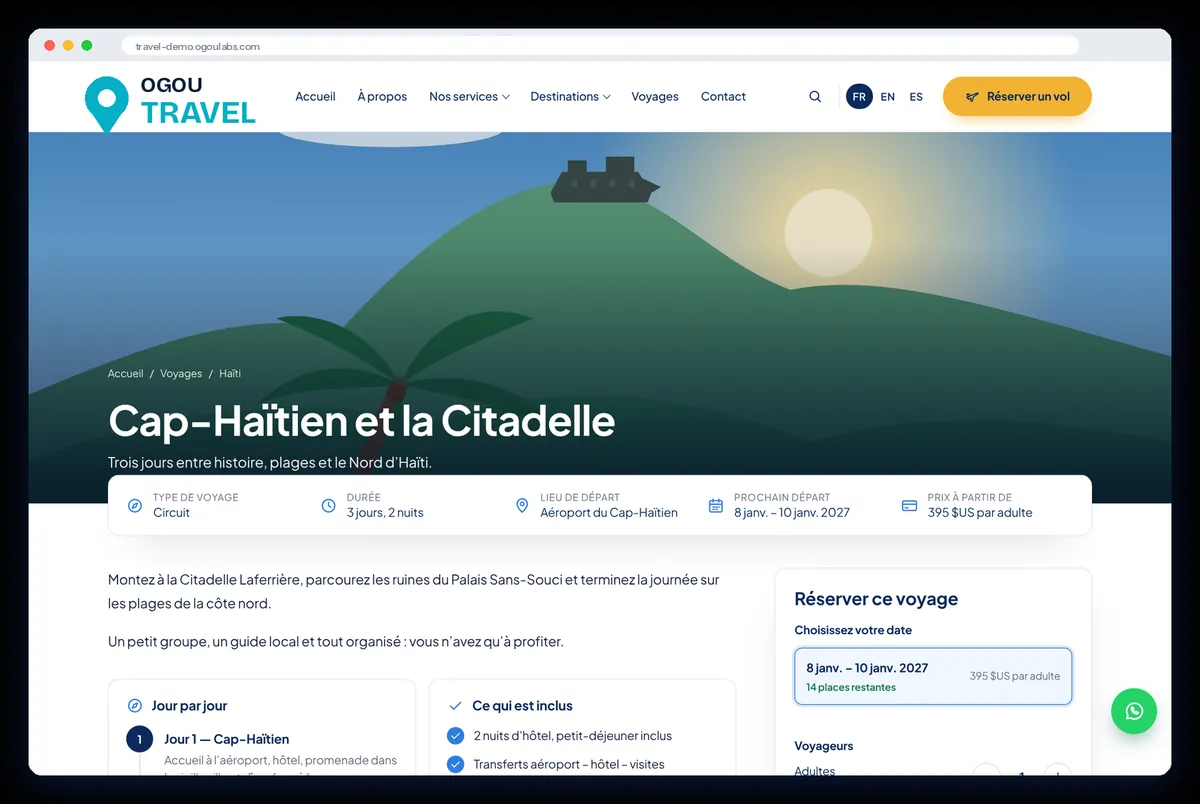
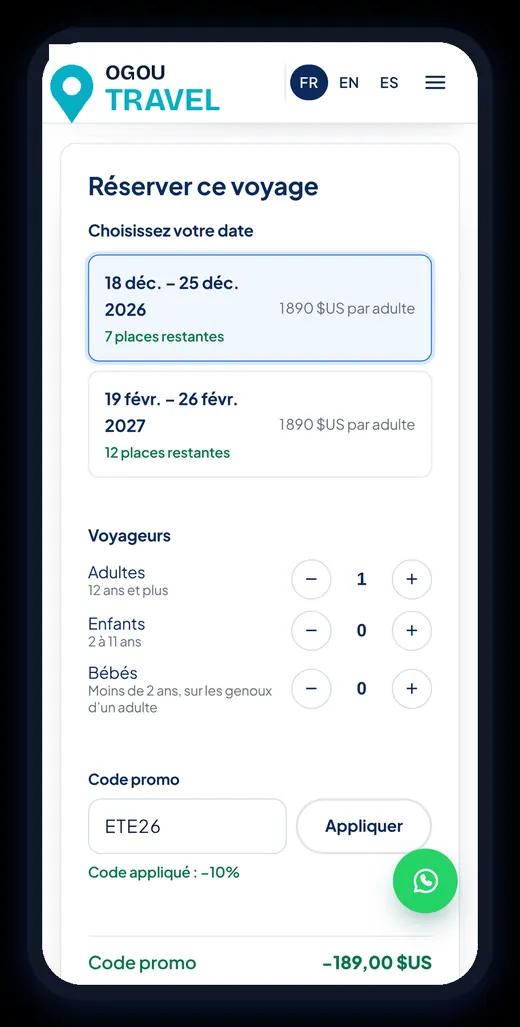
- The traveler picks a date; the remaining seats are shown live.
- They choose the number of adults (12 and over), children (2 to 11) and infants (under 2, on a lap).
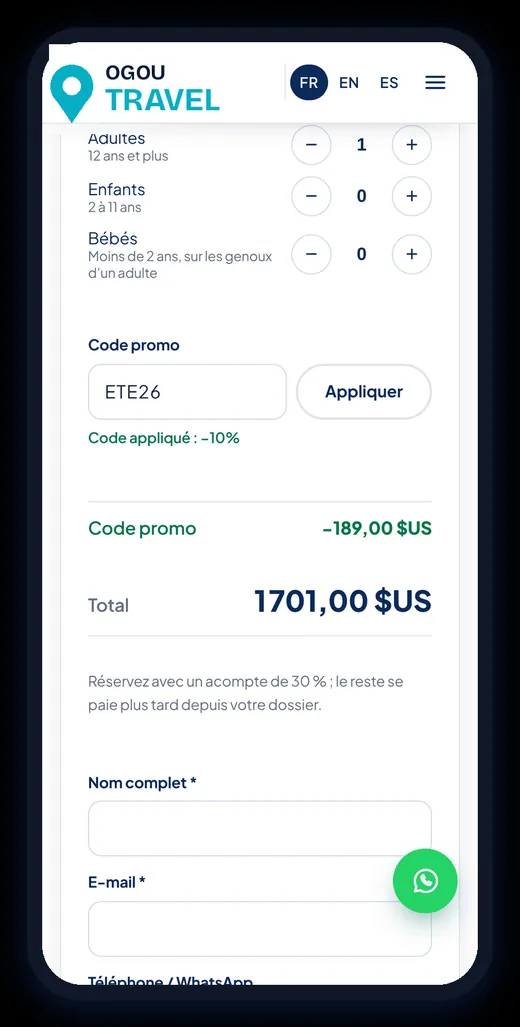
- They can type a promo code: the discount shows at once.
- They give their name, e-mail and phone/WhatsApp and book with a deposit (for example 30%); the balance is paid later from “My trips”.
Seats and promo codes are protected from double-selling: two people cannot take the last seat at the same moment.
Promo codes and the waitlist
In Promo codes, the team sets a percentage or an amount, the valid dates, the number of uses and a minimum spend.
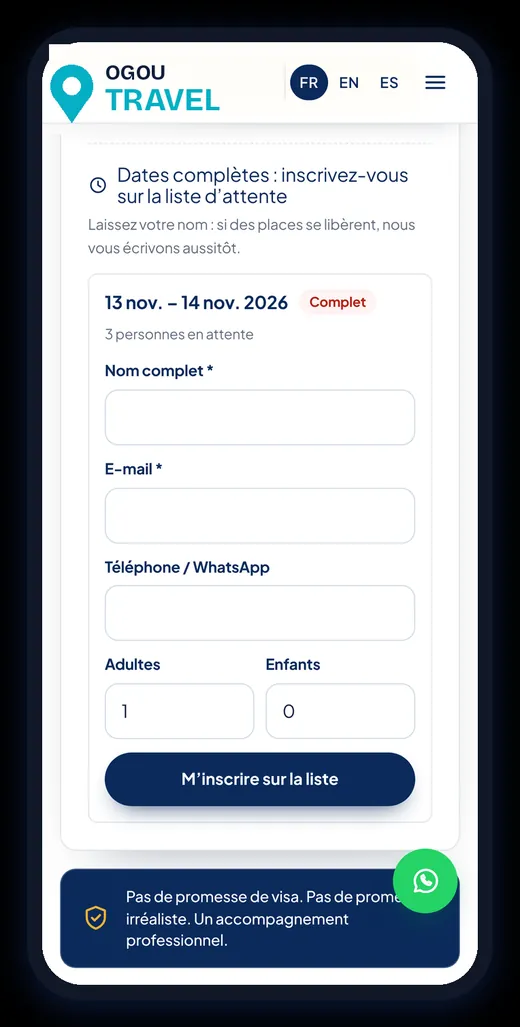
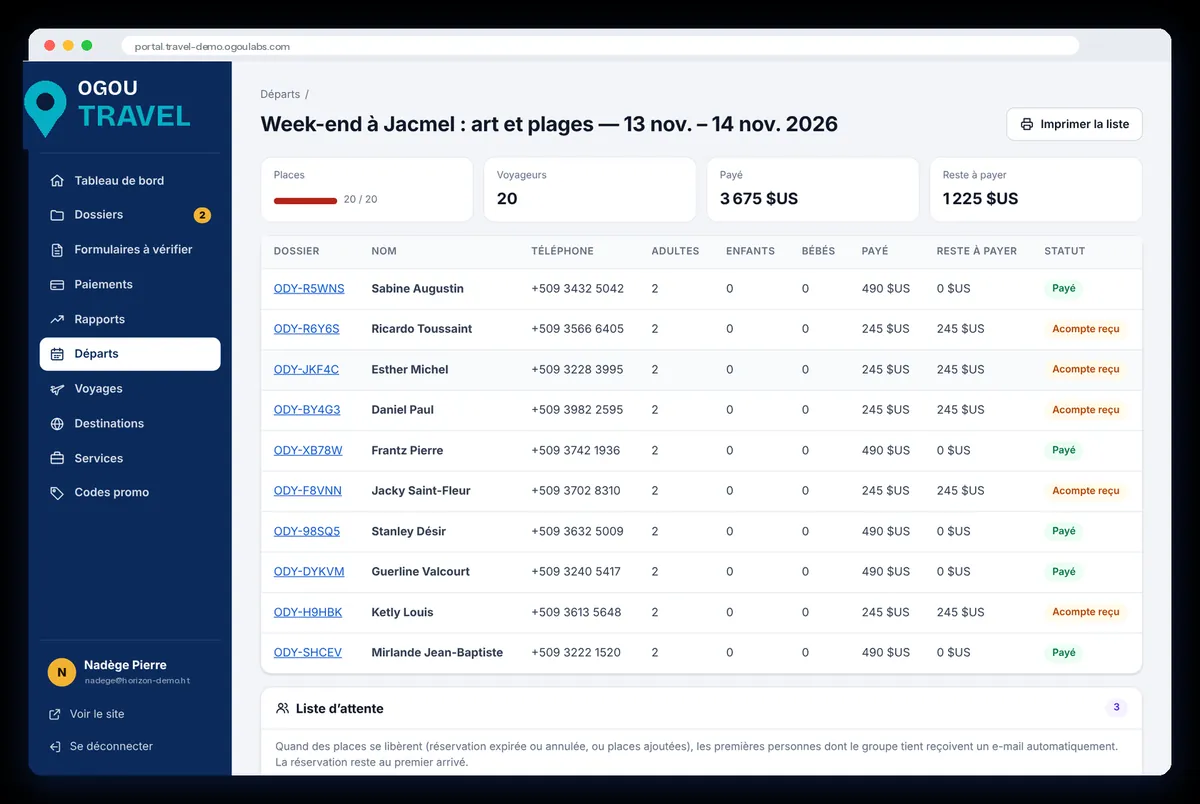
When a departure is full, the booking box becomes a waitlist: the traveler leaves their name, e-mail, phone and the number of travelers. When seats free up, they receive an e-mail automatically. The team sees the waitlist in Departures.
Quote requests and offers
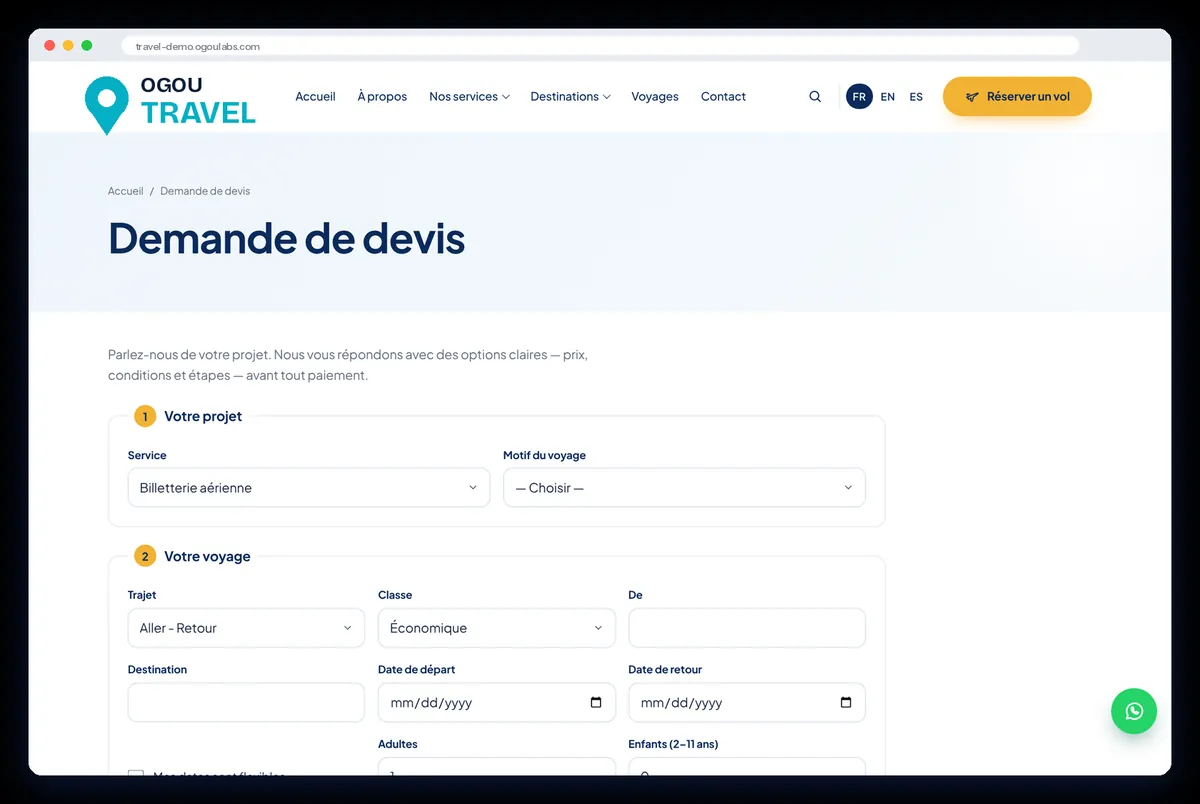
- The traveler fills in one form: the service, the reason for the trip, the route (one-way or return, class, dates, travelers) and any notes.
- The request arrives in the portal (Files, status “New”).
- The team answers with one or more clear offers: price and terms.
- The traveler compares and chooses before paying, from “My trips”.
The client area “My trips” and payments
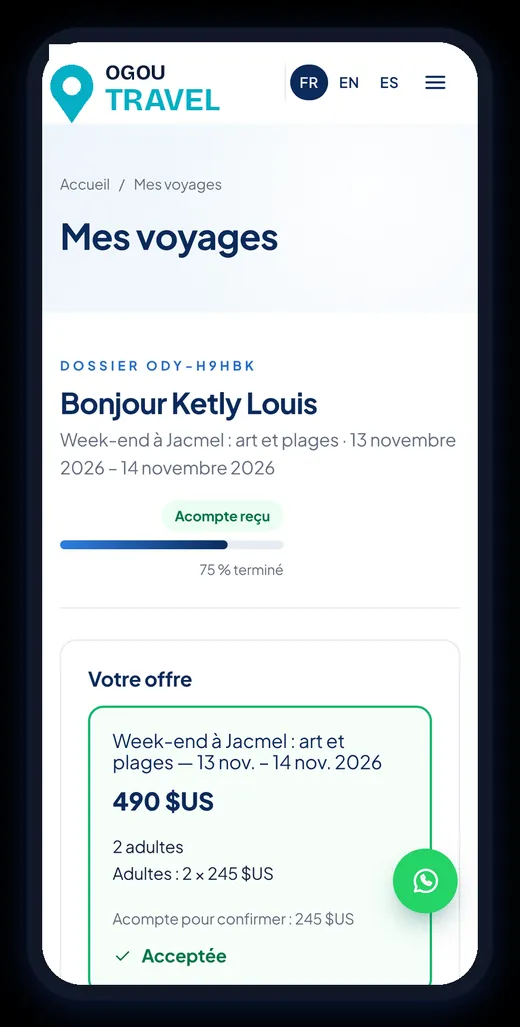
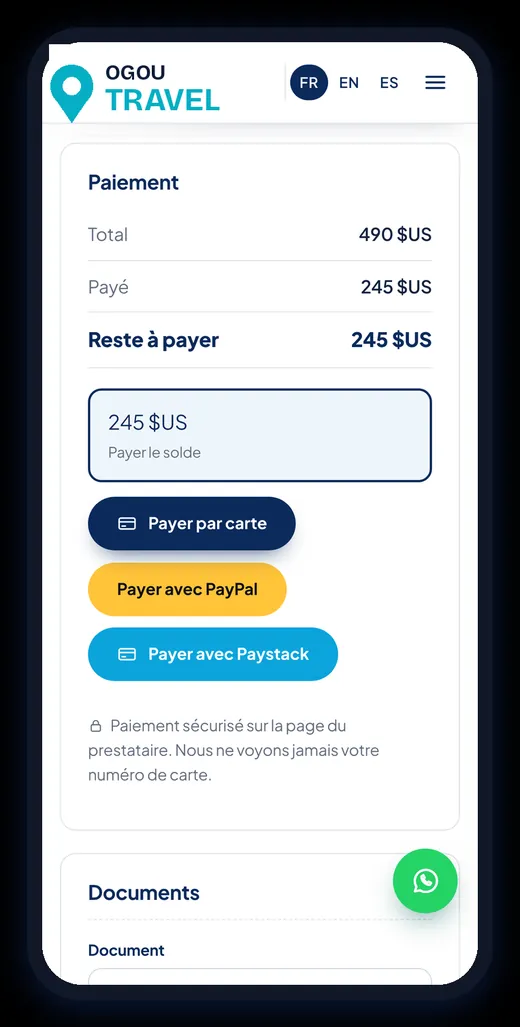
- The client area opens from the private link in each e-mail: no password to remember.
- It shows the offers received, the progress of the file, the documents and the payments (total, paid, balance).
- Online: card (Stripe), PayPal or Paystack. The card is typed on the payment provider’s secure page; the agency never sees the card number.
- At the agency: MonCash, NatCash or cash. The team records the payment in the file and the balance updates.
The 7-step registration form
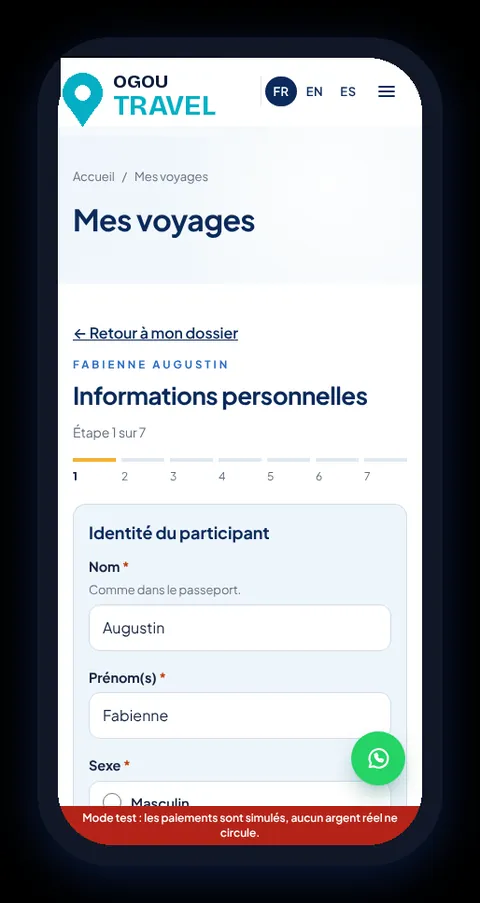
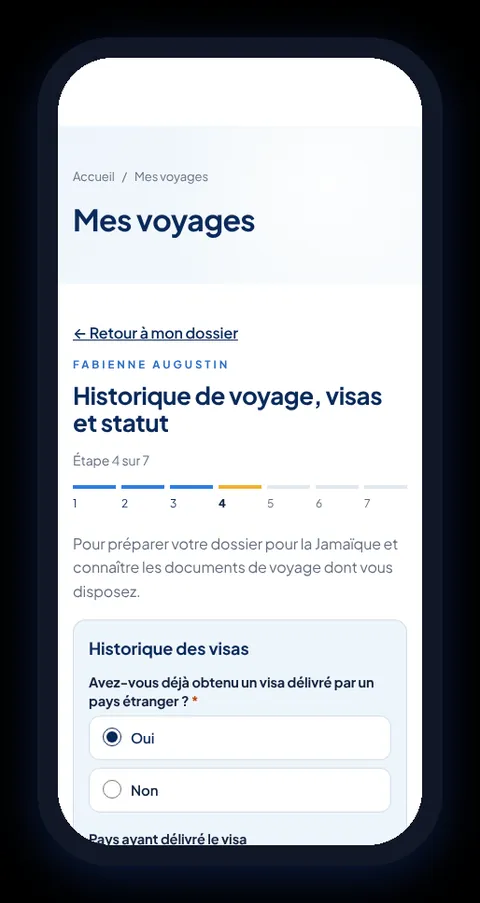
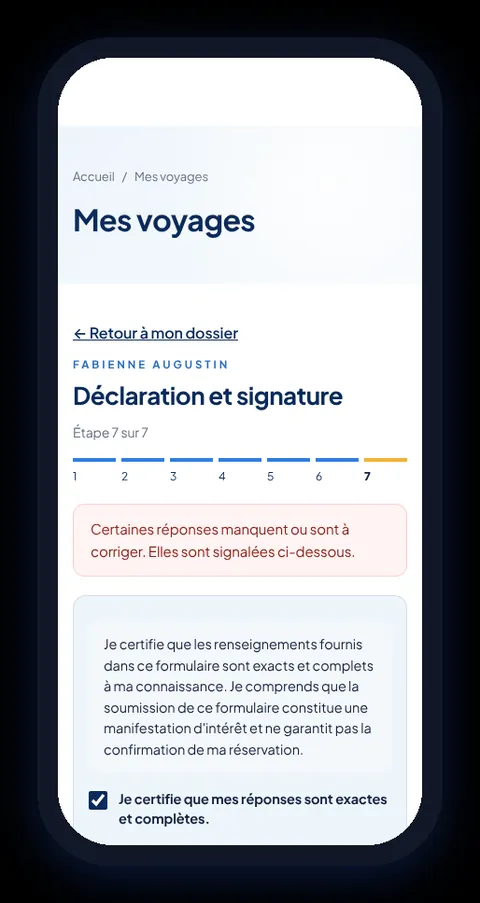
After the booking, the traveler fills in the registration form, built for phones and saved at every step: they can stop and come back later.
- Personal information
- Professional information
- Finances and payment
- Travel, visas and status
- History with the agency
- Package and preferences
- Declaration and signature
Review and certify a form (team)
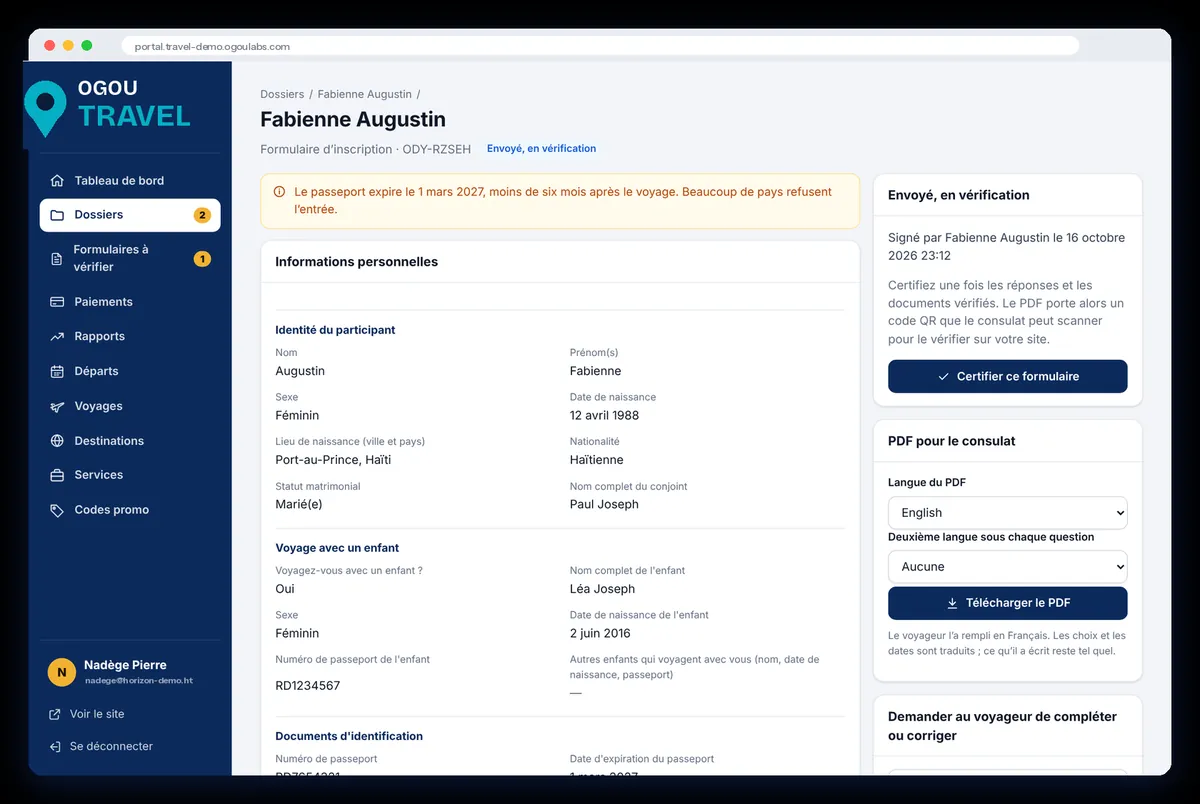
- Open Forms to check. Each form shows all the answers, grouped by step.
- Read the alerts, for example a passport that expires less than six months after the trip.
- If something is missing, use Ask the traveler to complete or correct.
- When all is right, click Certify this form. The PDF is created and sent to the traveler.
- For a consulate, you can download the PDF in English with a second language under each question.
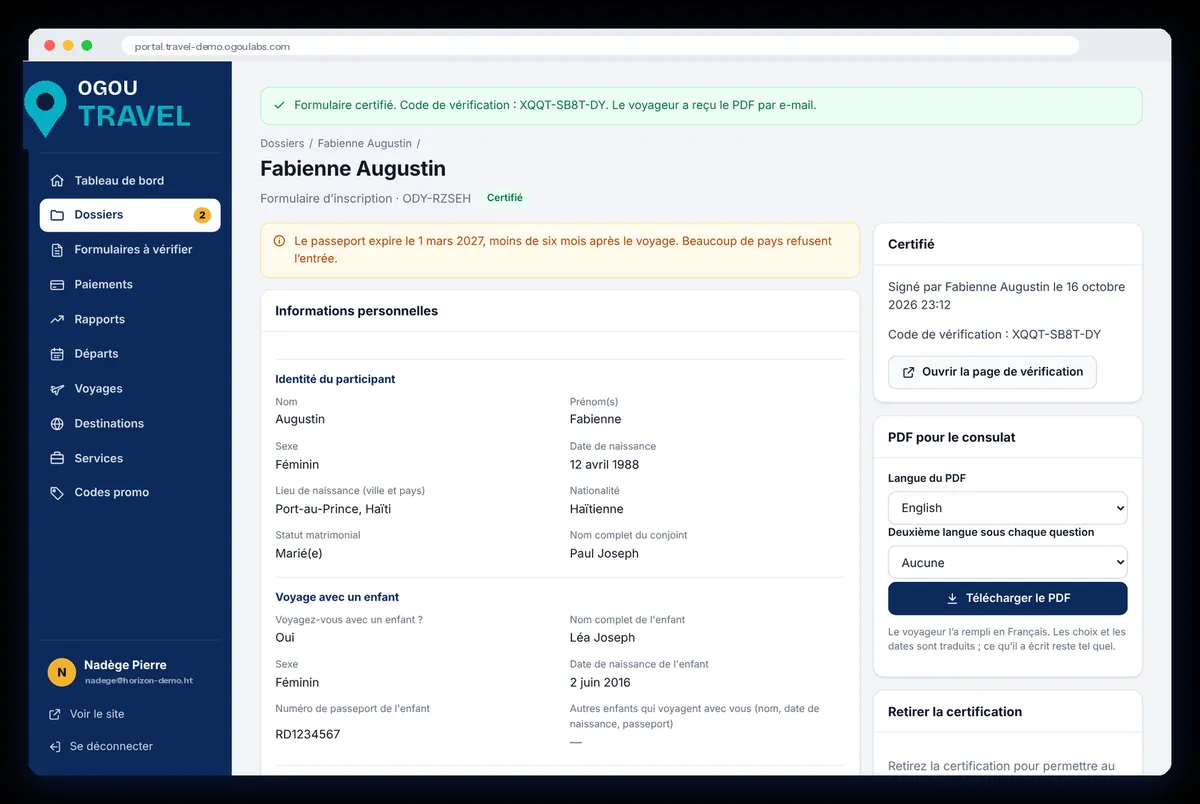
The certified PDF and the QR check
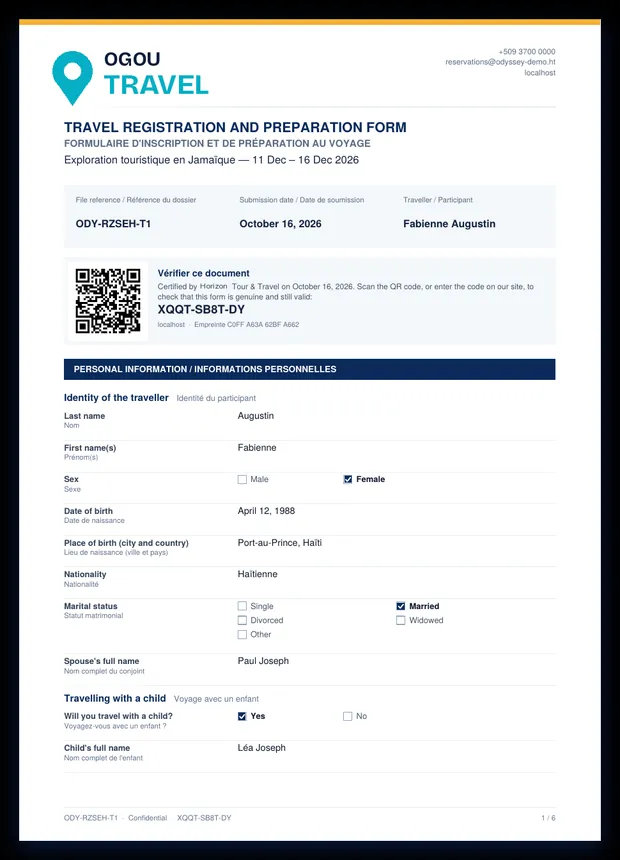
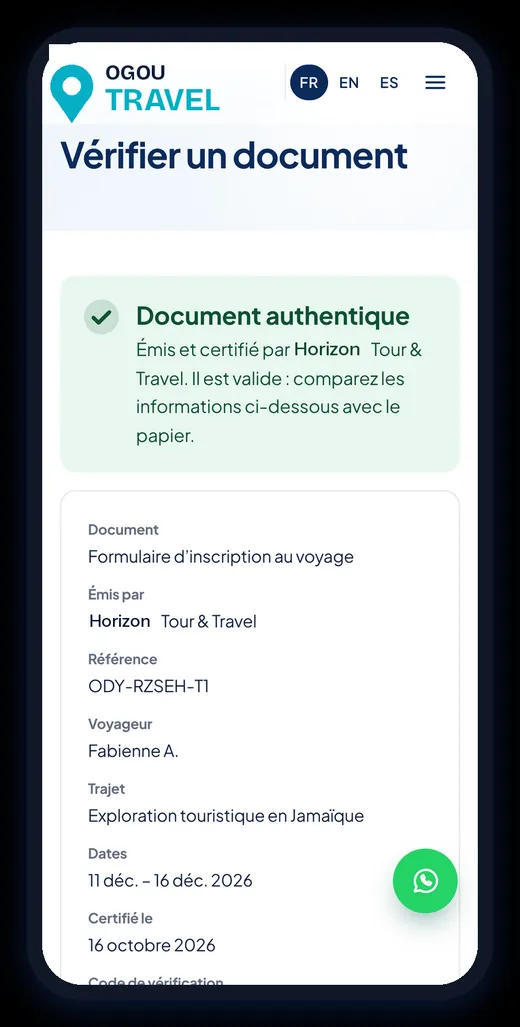
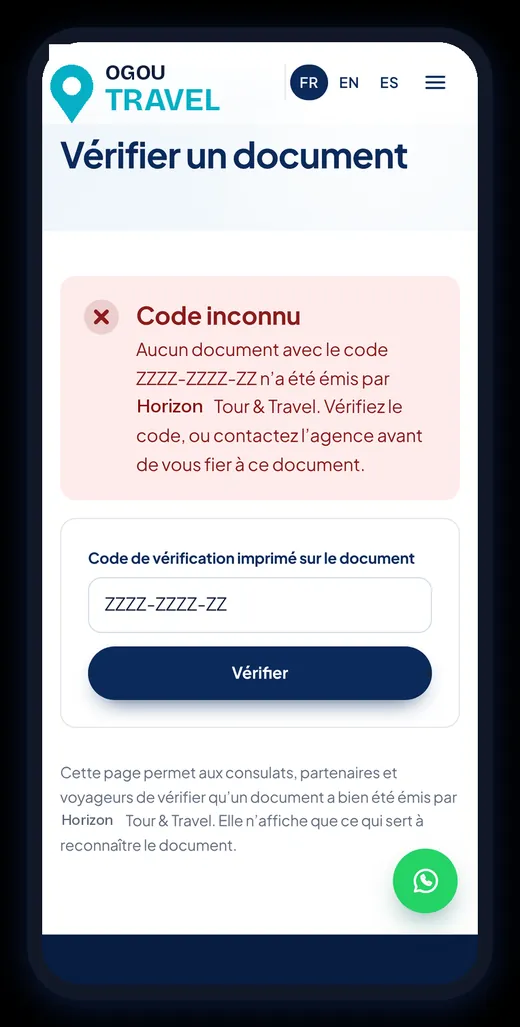
Each certified PDF has a unique code and a QR code. A consulate, a partner or the traveler scans it (or types the code on the “Verify a document” page) and sees “Authentic document” with the main details to compare with the paper. An unknown code shows a red warning.
Automatic e-mails and reminders
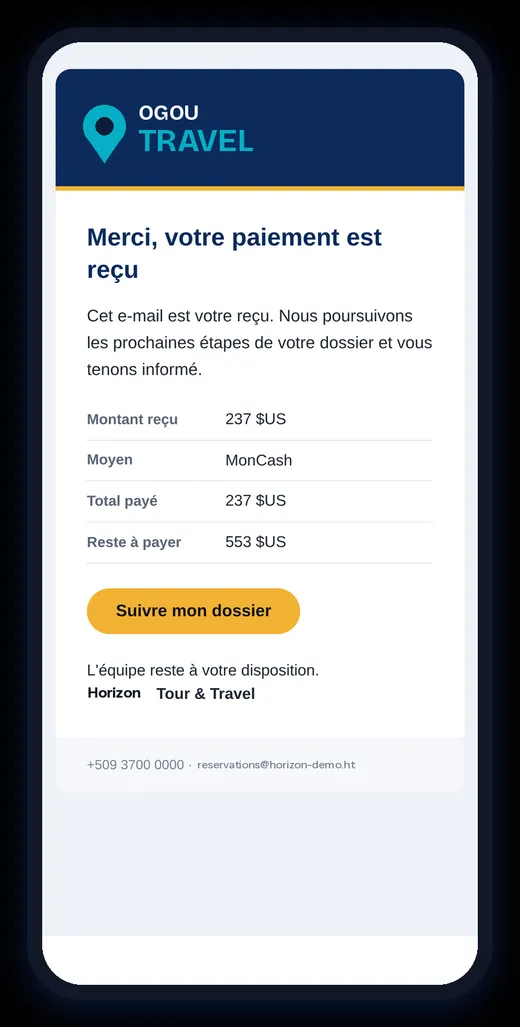
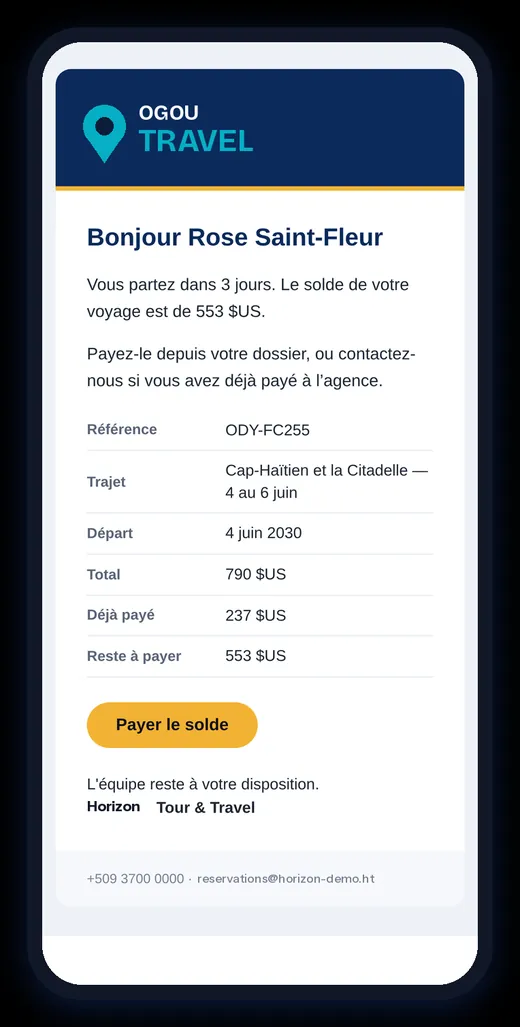
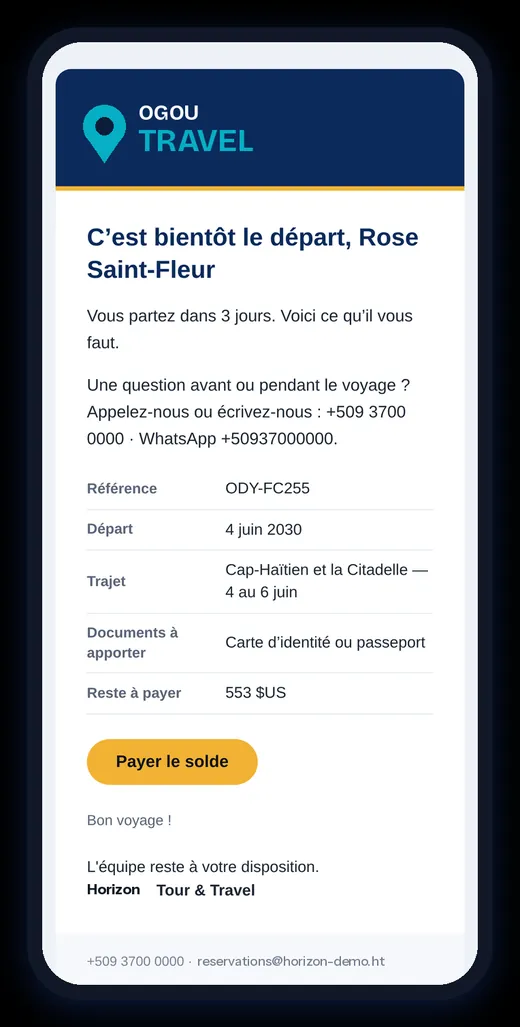
| Reminder | When |
|---|---|
| Balance to pay | 14 and 3 days before departure |
| Offer without an answer | reminder to the client |
| Seats on hold | 4 hours before the hold ends |
| Unfinished form | after 3 and 8 days |
| Departure | 3 days before: practical information |
Each reminder can be switched on or off in the settings.
The team portal, day by day
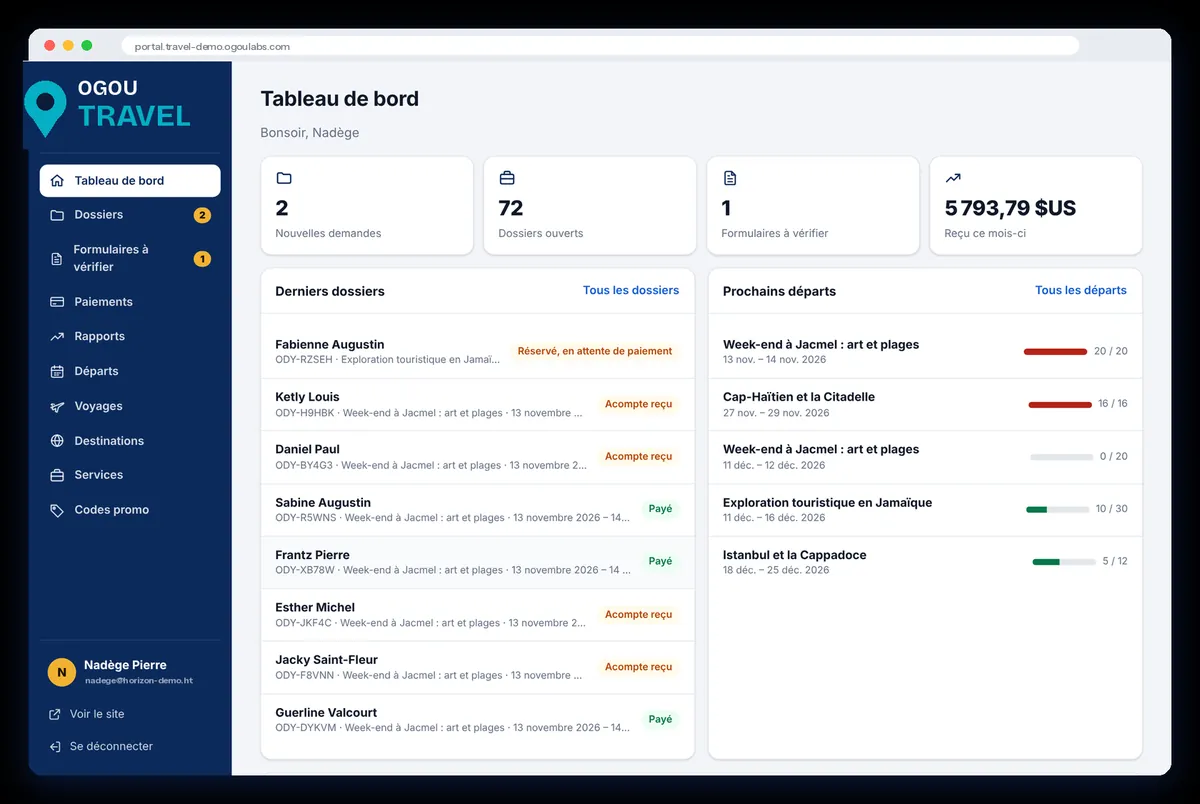
- Dashboard: today at a glance, and how full each next departure is.
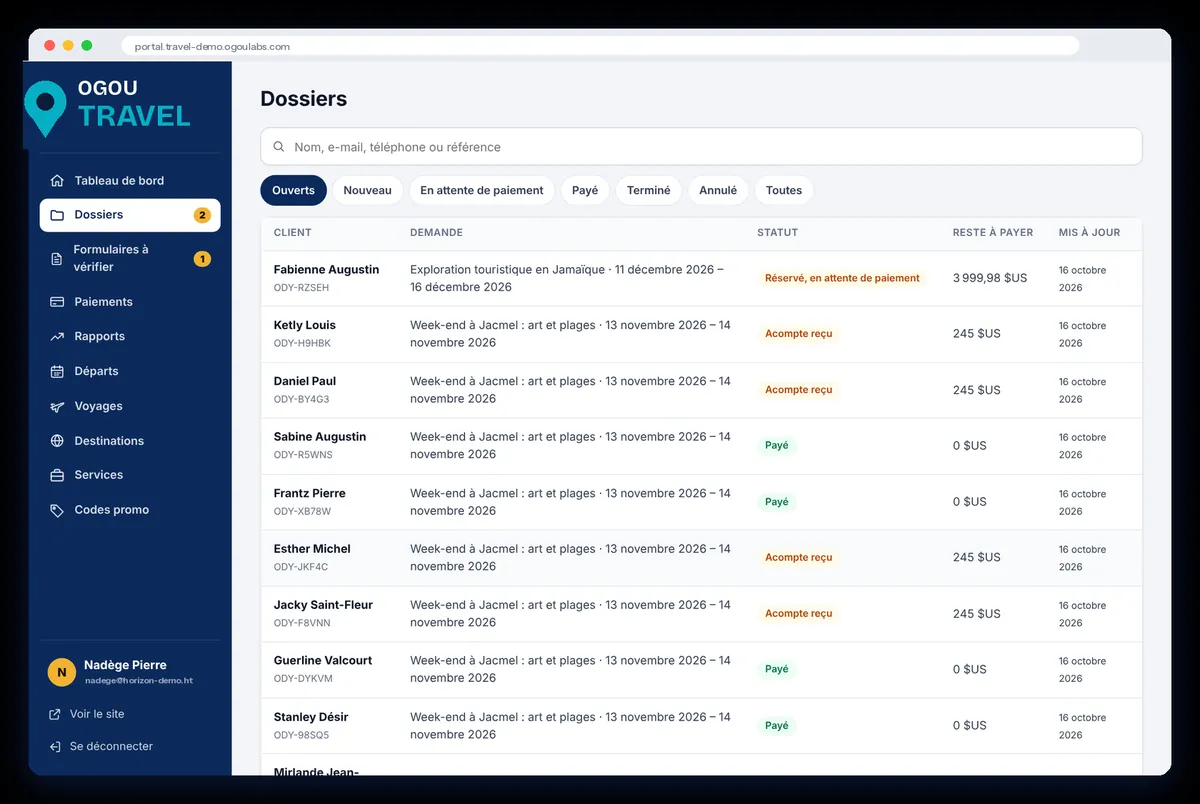
- Files: search by name, e-mail, phone or reference, and filter by status (open, new, waiting for payment, paid, finished, cancelled). One click opens WhatsApp with the client.
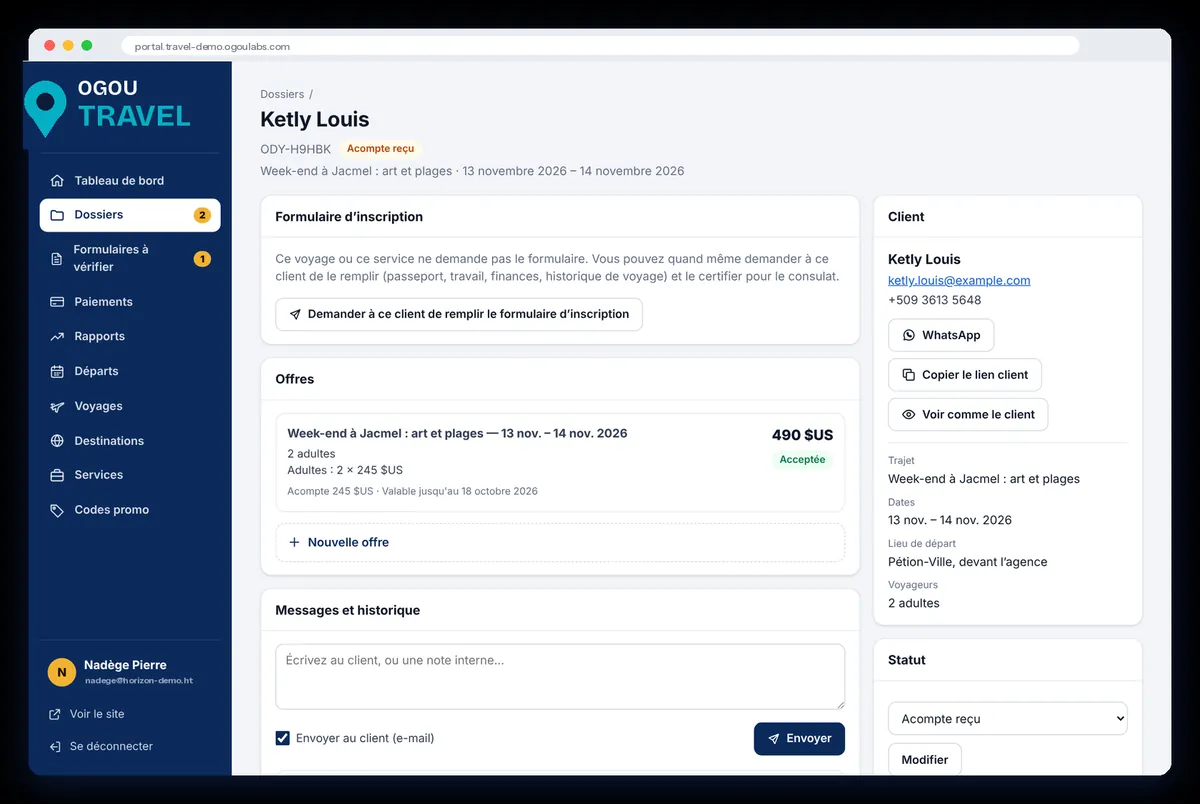
- File of a client: offers, messages and history, the form, the payments, and the next action.
Departures and passenger lists
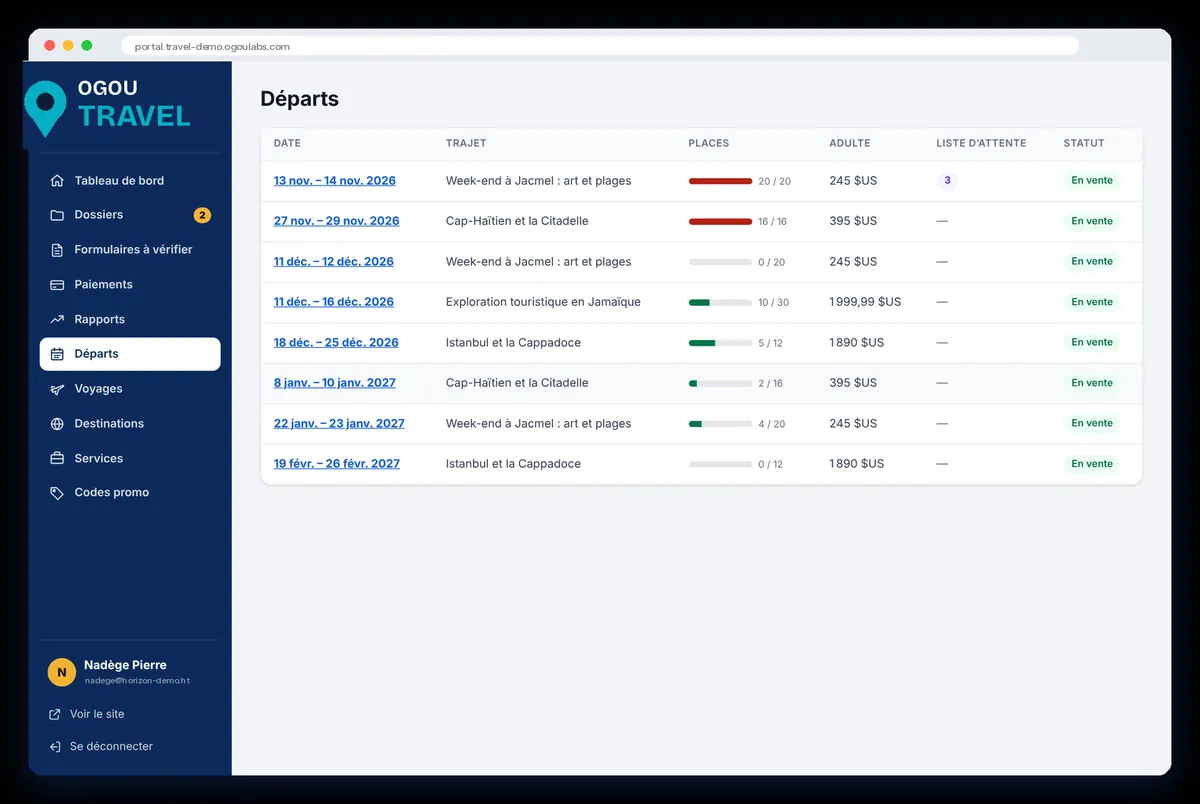
Open a departure to see the passengers, what each one still owes, and print the passenger list for the guide or the airline.
Payments and reports
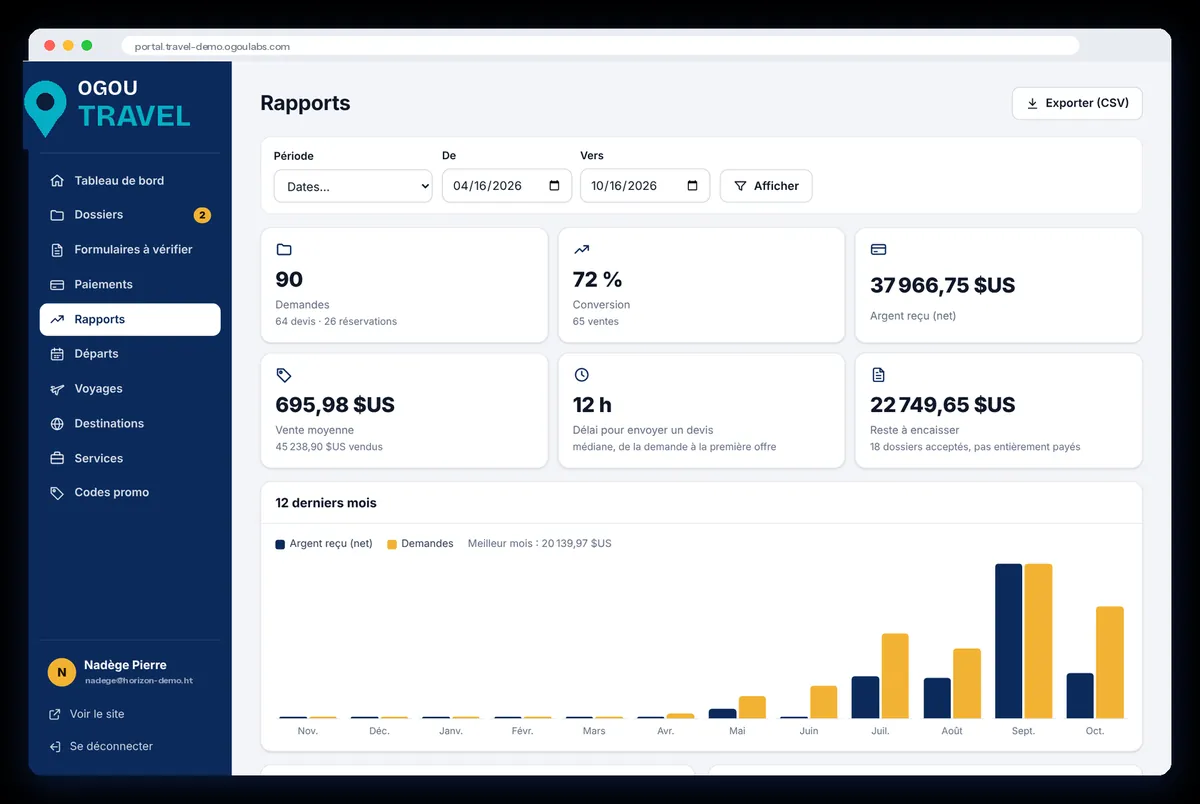
Choose a period to see the requests received, how many become sales, the money collected (net), the average sale, the time to send a quote, and what remains to collect. Results are shown by month, by trip and by source (Facebook, WhatsApp, Google…). Use Export (CSV) to open them in a spreadsheet.
Who sees what
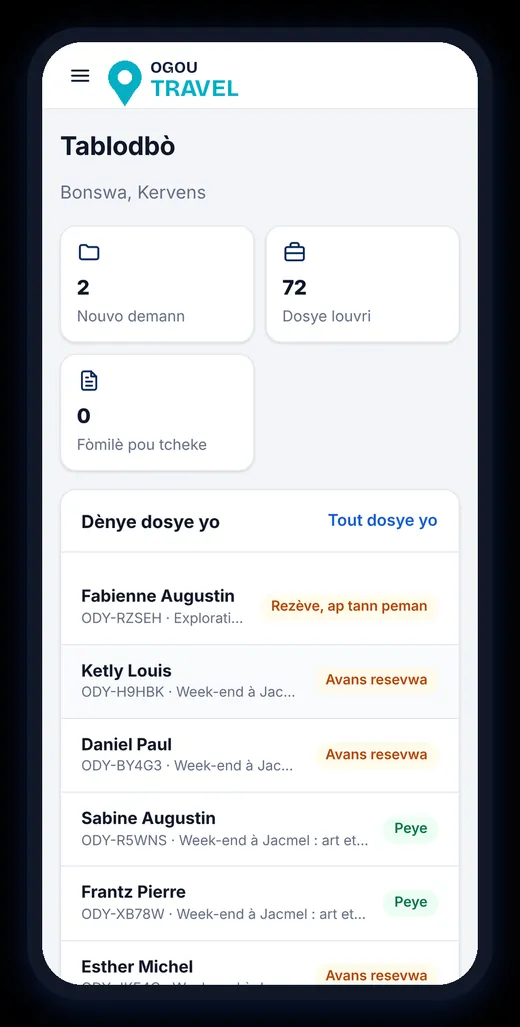
- Management decides who can see files, money, the catalog, certification and refunds.
- Each person sees only what their access level allows; a forbidden page stays closed.
- The portal never shows payment keys or settings: those stay in WordPress, for management only.
- Each staff member picks the portal language (French, English, Spanish or Kreyòl).
Troubleshooting
| Problem | What to do |
|---|---|
| Travelers do not receive e-mails | Set up an e-mail sender for the site (for example WP Mail SMTP) and send a test. Ask the traveler to check the spam folder. |
| A red “payments are simulated” bar is shown | The site is in test mode: enter the live payment keys in WordPress. |
| A payment received at the agency does not show | Record it in the client’s file (MonCash, NatCash or cash); the balance updates. |
| “Unknown code” when scanning a PDF | Check that the form was certified, and that the code was typed exactly as printed. |
| A trip does not appear on the website | Check that it is set to Public and has at least one future date with seats. |
| A team member cannot open a page | Their access level does not include it: management can change it. |
