
Ogou Music — User manual
Everything for listeners, artists and the site owner: buying, uploading, payouts, affiliation and troubleshooting.
Ogou Music is a complete music platform that runs on WordPress. Artists upload their music, set their prices and keep 80% of every sale. Listeners play, buy, and the music stays theirs, on the site or on their phone. It needs no WooCommerce and no middleman: sellers and buyers meet directly on your site.
This manual covers Ogou Music 3.20.5. The platform changes: if something here differs from what you see on screen, the screen is right.
What makes it different
- Local payments. MonCash, NatCash and KashPaw, plus bank cards for the diaspora.
- A fair preview. Anyone can listen to a part before buying, measured on the real length of the file, not on a fixed number of bytes.
- The music stays yours. What you buy, you download, and you can keep it on your phone to listen offline.
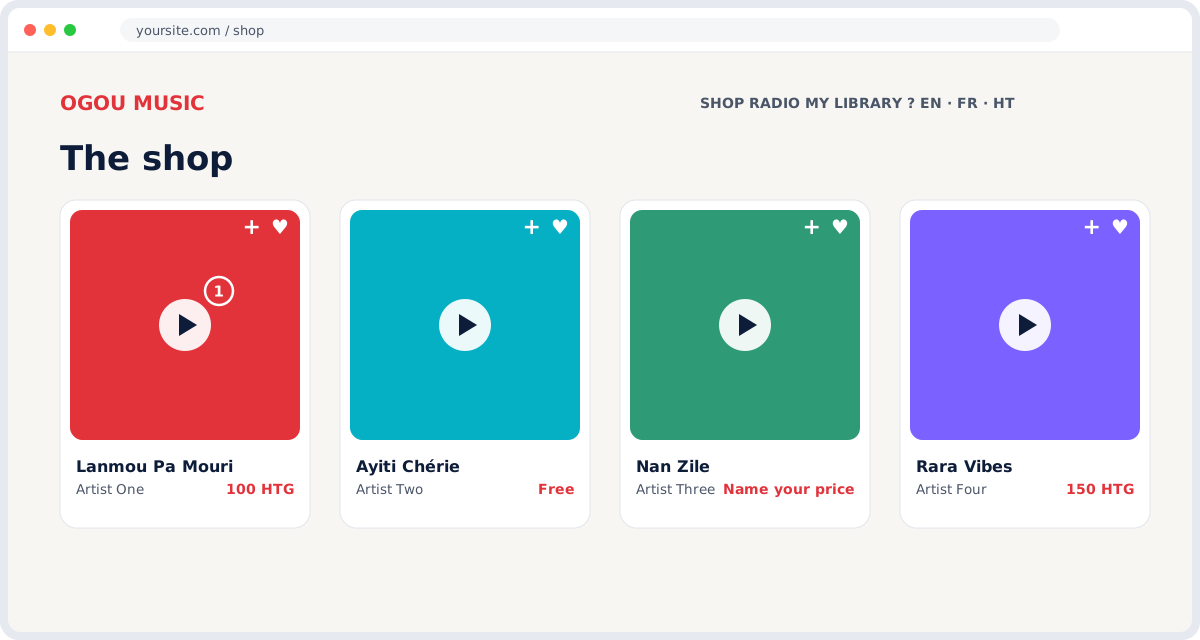
On the cover: the heart (it pays the artist), share, and + to add to a playlist. Press the cover to listen.
For listeners
Listen before you buy
Press the play button on any cover. If the track is free, or you already bought it, it plays in full. If it is for sale, you hear a part: about a third of the track, up to 45%, calculated on the file length. A 3-minute track gives you about 32 seconds, and a 40-second track does not give you everything.
Buying
- Press Buy on the card or on the track page.
- Choose how to pay: MonCash, NatCash, KashPaw, bank card, or your balance if you have money in it.
- Finish the payment. For MonCash and NatCash you go to the Pay’M page and then come back.
- The track is in your library for good. You never pay twice.
A price you choose. Some tracks say “Name your price”: the artist sets a minimum and you pay what you want above it.
Your library
Press My Library at the top of the page.
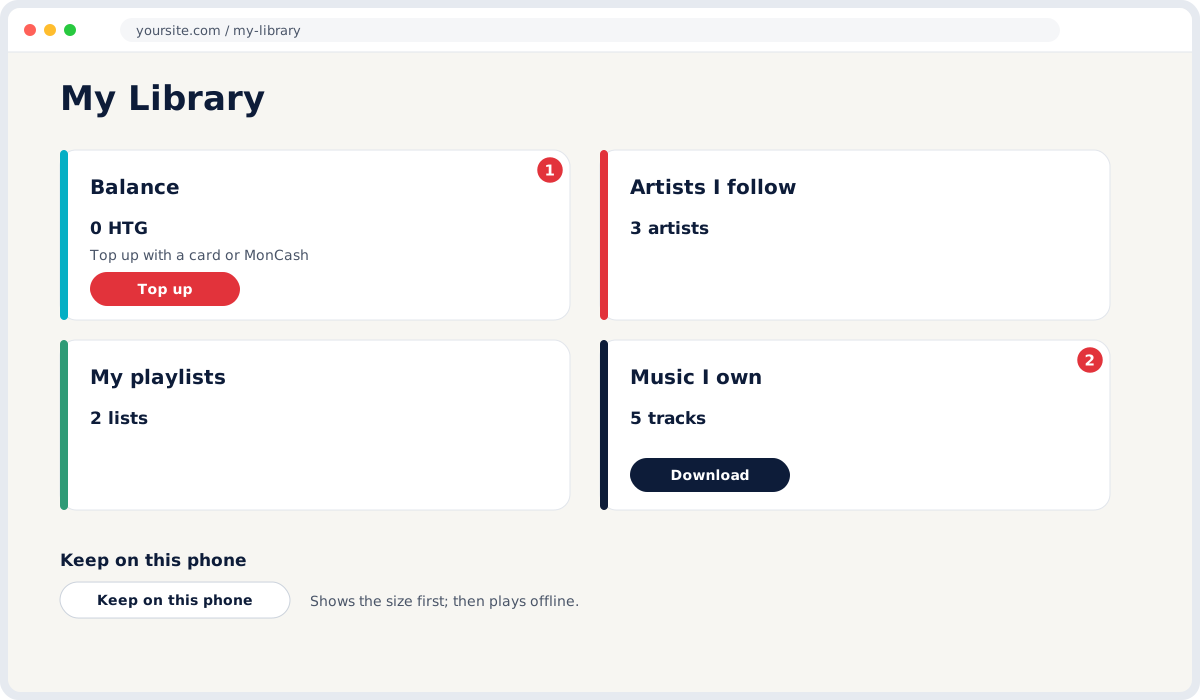
- Your balance: money you can spend on the site. You top it up with a card or MonCash. It cannot be withdrawn: it is money for buying here.
- Artists I follow: every artist you follow. Press the button on a card to stop following.
- My playlists: the lists you made.
- Music I own: everything you bought, with the download button.
Keep music on your phone
In the library, each track you bought has a Keep on this phone button. It tells you how many megabytes it takes before it starts. After that the track plays offline. You can remove the copy at any time: you still own the track.
Playlists
- Add tracks to the queue: press + on a cover.
- Save the queue as a playlist. Give it a name and choose whether everyone can see it or only you.
- Edit it any time. On the playlist page you can rename it, remove a track (the small × on the row) or delete the playlist.
The address does not change when the name changes, so a link you already shared keeps working. Deleting a playlist never touches the tracks: they stay in the shop.
Following an artist
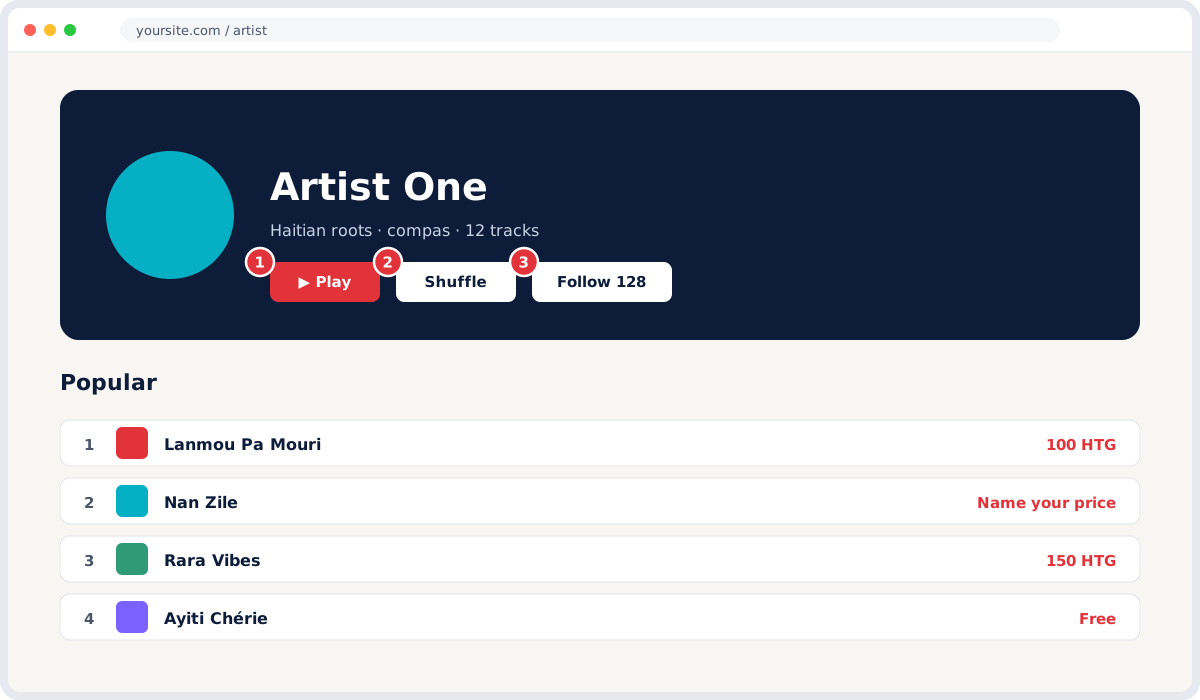
On an artist page, press Follow. Each time that artist publishes a new track you get a message, once per track, in the language chosen in your account. To stop, go back to the page and press Following.
The heart pays the artist
Press the heart on a cover. It costs you nothing, but it puts money directly on the artist’s balance. You must be signed in, and you can give each track one heart.
Radio
Press RADIO in the menu. It plays the whole catalogue in random order, without stopping. A good way to discover things you were not looking for.
Install it on your phone as an app
- Android (Chrome): three-dot menu → Add to Home screen.
- iPhone (Safari): share button → Add to Home Screen.
Afterwards it opens like an app, without an address bar, and the music you kept keeps playing offline.
Change language
At the top of the page you see EN · FR · HT. Your choice stays, and even the messages you receive by e-mail will be in that language.
For artists
From zero to your first sale.
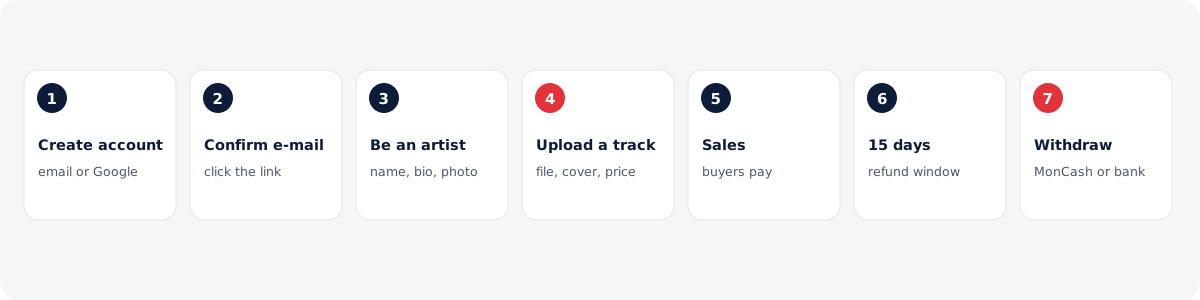
Become an artist
- Create an account with your e-mail, or with Google.
- Confirm your e-mail address. We send a link. You must press it: without it you cannot become an artist. This protects against fake accounts.
- Go to the Dashboard and press Become an artist. Enter the name you will use, a short description and a photo.
Upload a track
- The file. MP3 (or WAV, M4A, FLAC: the site converts them). Upload your best quality.
- The cover. A square image, at least 1000×1000. If you add none, the site makes one.
- Title, genre, year. Write the title as it is, not in all capitals.
- The price. Choose one of three: a fixed price, free, or name your price with a minimum.
- Release date (optional). Set a date in the future and the track shows with a countdown. You can allow people to pre-buy it.
- Press Publish. It appears in the shop right away (or on the release date).
Lyrics. Every track page has a button to add the lyrics. Anyone can write them; you approve them, and the names of the people who wrote them appear below.
When two of you make a track together
| What you want | The tool | What it does |
|---|---|---|
| Split the money | Splits | Every sale is divided automatically between your accounts, in the percentages you set. |
| Give someone credit | Featuring | The name shows on the card and the page, and the track appears on that artist’s own page. |
The split is set on each track separately, in Dashboard → the track → Splits. The total must be 100%.
To get your money
- Enter your payout details. Dashboard → Payments and verification: your MonCash or NatCash number, or your bank account.
- Send an ID document. This is done once. It is how we know the money goes to the right person.
- Turn on two-factor (2FA) if you like. When on, changing the payout number asks for a code.
Changing the payout number takes 48 hours to become active, and a message is sent to the old address. If someone gets into your account and changes the number, you have two days to see it.
Request a withdrawal
Dashboard → Money → Withdraw. The figure you see is what is available: sales older than 15 days. A sale made today is not in it yet.
Make your music work
- Boost: you pay for the site to send your music in an e-mail campaign and post it on X. Dashboard → Promotion.
- Share the link. Each track has a share button that makes a nice card on WhatsApp and Facebook.
- Embed. Each track page has a code to put a small player on any other site.
- Affiliation. Bring other artists to the platform and earn on every sale they make (see the next section).
Money
This is exactly what happens to 100 gourdes when someone buys a track.

The rule that never breaks: the payment fee, the affiliate commission and every other cost come out of the platform’s 20%. The artist keeps 80 gourdes whatever happens.
Two boxes of money, only one has an exit
| Artist balance | Purchase balance (wallet) | |
|---|---|---|
| Who has it | Artists | Everyone |
| How it fills | Sales, hearts, tips, commissions | You put money in it |
| Can you withdraw it? | Yes: MonCash, NatCash, bank | No: it is for buying here |
Affiliation
Everyone has a code (for example BELONY509). When someone comes to the site with your link and creates an account:
| If that person is… | You earn | For how long |
|---|---|---|
| an artist | 4% of every sale they make | no limit |
| a buyer | 1% of every purchase they make | no limit |
The commission stays pending for 72 hours, then it reaches your balance. You see everything at /afilyasyon/. What you will not see: the e-mail or phone of the people you brought. You see their first name, the date and how much, because a list with contacts is a list someone could take somewhere else.
For the site owner
Installation order
- Ogou Music first. Everything else depends on it.
- Then the add-ons: Pay’M, Affiliation, Marketing, Social, Attribution, Covers.
- The theme: Hello Elementor and
ogou-hello-child. Do not delete Hello: the child needs it.
To update: Plugins → Add New → Upload → Replace current with uploaded. Do not delete the old one first: that would erase your settings.
First settings
Everything is in Ogou Music → Setup:
- Money: HTG by default. The artist share (80%), the fee (4%), how many days to wait (15).
- Payment methods: switch on what you want: Pay’M, Stripe, PayPal, Paystack, balance.
- Pages: the plugin creates the pages it needs. If you already have your own, choose them by hand.
- Storage: Wasabi or the server. Wasabi is recommended for a large catalogue.
The scheduled job: this one matters
Many things depend on a job that runs regularly: commissions released, e-mails sent, covers made, audio converted. WordPress’s own system only runs when someone visits the site, which is not reliable. In cPanel → Cron Jobs, add:
*/5 * * * * /usr/local/bin/php -q /home/USER/public_html/wp-cron.php >/dev/null 2>&1
After checking that it works (Ogou Music → Tools → Scheduled work), add to wp-config.php:
define( 'DISABLE_WP_CRON', true );
The order matters: the server cron first,
DISABLE_WP_CRONafter. If you do it the other way round, nothing will run at all.
Paying an artist
- Ogou Music → Money → Withdrawals. All the requests are there.
- Check the ID document if that is not done yet.
- Automatic payments go by themselves if Pay’M is on. Otherwise press Mark as paid after sending the money by hand.
Moderation
Ogou Music → Artists → an account → Block. Their music and profile are hidden immediately: in the shop, in search, in albums, on artist pages and in the radio. The person can write an appeal.
The diagnostic tools
Ogou Music → Tools. When something does not work, start there; do not guess.
| Tool | What it answers |
|---|---|
| System check | The server state, the last e-mail sent, the sitemap, the plugin addresses, and why a page might open another page. |
| Scheduled work | Which jobs are scheduled and when the next one runs. |
| Broken orders | Orders that were paid but not finished, with a button to repair them. |
| Old addresses | Old addresses that were 404 and now redirect. |
| Artist / Fan lookup | Find a person and see everything they do. |
| Wording | Change any text on the site without touching code. |
When something does not work
I paid but I cannot find the music
Look in My Library first: if the payment went through, the track is there with a download button. If it is not: Library → Settings → Transactions. You will see the payment state. Paid means it went through; Pending means it is not finished; Failed means it did not go through and no money was taken. For a MonCash or NatCash payment that stays Pending for more than 10 minutes, contact support with the transaction number.
My track does not show in the shop
- It is not published yet: Dashboard → the track → the state must say Published, not Draft.
- It has a release date in the future. It shows with a countdown and becomes buyable on the date.
- The file is not converted yet. A large file takes a few minutes.
I cannot request a withdrawal
Check three things, in order: payout details are set (MonCash/NatCash number or bank account); the ID document was sent and approved; and the available balance, which only counts sales older than 15 days. If you just changed the payout number, wait 48 hours before it is active.
I do not receive the e-mails
Look in spam first. Then check the address in Library → Settings → E-mail. If you pressed “unsubscribe” on a message before, that stops only that kind of message, not your account. For messages about an artist: go to their page and press Following to stop, or Follow to start again.
The track stops before the end
That is the preview. If you did not buy the track, you hear only a part. Buy it and it plays in full, in the same place, without reloading the page. If you already bought it and it still stops, sign out and sign in again: the page may have loaded before your session opened.
The music I kept on my phone disappeared
The phone can delete it when space runs out. Go back to the library and press Keep on this phone again: you do not pay twice.
The app does not update
Close it completely (not just minimize) and open it again. If that does not work, on Android: Settings → Apps → the browser → clear the cache. The music you kept will not be lost.
A page opens another page
For the site owner: Ogou Music → Tools → System check, scroll to Our addresses and Why a playlist opens the home page. These two tables say which rule answers each address and which page is used in the end, and the name of whatever changed it if something did.
How do I contact someone?
In the menu there is a ? icon. It opens support. Write what happened; when we reply, a mark shows on the icon, so you do not need to keep the page open.
